How-To Guides
Product information guides
Web Email
Complete Guide to Email
Attachments
1) In the New Email window, click the Attach button.
To the right of the “Attach files from” button is a drop-down list that allows you to select the type of files you would like to choose from. You may select files from “My computer” or “Online files.” or vCard information
2) Once you click the Attach button, a window labeled “File Upload” will pop up. Select the file(s) that you would like to attach so they appear in the file name field, and click Open.
3) Once you have chosen the first file, the Email Attachment window will update itself. It will list the file that you have selected and gives you the option to add more files. You may add more files by clicking the Attach button again. Continue this process for each additional file.
4) The attachment window will display the progress of your file upload(s). Your compose screen will refresh with the attached files displayed by name under 'Attachments'. The size of the files will also be displayed in kilobytes. While the uploader is working, you may fill in the address fields as well as compose the message body.
5) To remove a file in the Email Attachment window, delete the file name of the selected attachment before pressing Open. This can also be done from the compose screen after the files are uploaded by clicking the Remove button.
Composing Email
B) Use SimpleClick™ to enter individuals or groups without typing in addresses. To use SimpleClick™, click on the To button and your contact list will appear on the left-hand side of the window.
C) You may choose from personal, shared, and enterprise contacts (See SimpleClick™ tabs). Simply click on the desired names to automatically insert them into the To field of your email.
Deleting Messages
a) To select multiple messages for deletion, you may select the messages with your mouse while holding the Ctrl key down on your keyboard.
b) To select and delete all the messages in a folder, hold down the Ctrl key and press the A key on the keyboard.
c) To set your Trash folder to automatically empty in time intervals, click Preferences and then click General Settings under the Email section.
Downloading Attachments
When an attachment is sent along with an email, a paperclip icon will be displayed next to the email in your inbox. To download an attachment from an incoming email, please do the following:
1) Click on the name of the attachment while previewing the email.
2) To view the attachment, click Open.
3) To save the attachment, click Save and select the location where the attachment will be placed.
Email Preferences
This section provides a brief description for each Email preference in the web application
General Settings
General Settings:
- Viewing Emails
> Select the number of emails you would like to display on a page.
> Enable or disable the preview pane, which permits you to view or display an email below the list of emails in a folder.
- New Message Notifications
> Select the frequency of new email notifications. These notices pop-up when new messages are received.
- Composing Emails
> Choose whether or not you save outgoing emails to your Sent folder.
> Select the email composer (Rich text or plain text) for each new message you compose.
> HTML display preferences to be inline with text, or as an attachment.
> Choose the auto-save preferences for composing email; select the desired time frequency and option to save to the Drafts folder.
- Cleanup
> Choose to automatically delete messages in the Trash folder at a specific time frequency.
POP3 Accounts
If you have a secondary email address that supports POP3 access, BlueTie can retrieve the email and place it in your BlueTie Inbox.
Note: Before you proceed further, you will need to have your server settings, username, and password. If you do not have this information, please contact your Internet Service Provider or System Administrator.
To set up another POP3 service to use with BlueTie, please do the following:
1) Click on Preferences
2) Click on POP3 Accounts
3) Click on Create POP Account
4) Fill in the required information:
Account: Enter a general description of this account, such as Home Email Account.
Username: Enter your Username for this email account.
Password: Enter your Password for this email account.
Timeout: Enter the number of seconds by which the server must respond.
Port: Enter the POP3 port number. (Port 110 is the standard POP3 port).
Leave Messages On Server: Use the drop-down list to select ‘Yes’ or ‘No’.
Mail Server: Enter the name of the server. You can get this information from your System Administrator, or by contacting the Support Department for this email account.
5) Click Save after all the information has been entered
Name and Signature
Name and Signature:
- Name
> Enter your name exactly as you desire it to appear. Note: the name you enter will be the same name that appears in a person’s inbox.
- Signature
> Unless this feature is disabled, your signature will automatically be attached to every email you send. Your signature may consist of any information, including contact information, website, phone, etc.
- Sender Address
> To select or set the alias from which your emails are sent, select an address (from the list of available aliases) to use as a default.
Spell Check Options
Spell Check Options:
- Dictionary
> Choose between the American, Canadian, UK and Australian English dictionaries according to your geographic location.
- User Dictionary
> Add words that are commonly used, but not misspelled and should be ignored by default when using Spell Check.
- Spell Check Options
> Customize your spell check by indicating what should or should not be caught and reported by spell check.
Junk Mail Controls
Junk Mail Controls:
Safe and Block List Section:
- When you add an email address or domain to your Safe list, it will never be delivered to your Junk mail folder. Click Add to make an entry, or highlight an address and click Removeto delete from your Safe List.
- When you add an email address or domain to your Block list, it will always been delivered to your Junk mail folder. Click on Add to make an entry, or highlight an address and click Remove to continue receiving email from this address or domain in your inbox.
- Your enterprise manager can also add domains and addresses at the enterprise level. These will be displayed in your lists but will be uneditable. Contact your enterprise manager if you need these entries edited.
Delivery and Cleanup Section:
- Hide Embedded Images: If you are unable to see the images in your email, please adjust your junk mail controls using this setting to hide/unhide these images.
- Handling Inbound Junk: Choose where you would like Junk mail to be delivered. It will normally go to your Junk mail folder, but if you are a POP user, it is recommended that it be delivered to your inbox and tagged as SPAM:.
- Automatically Delete Junk Messages: In this sections you can choose to automatically delete junk mail messages that are of a certain age.
Message Filters
To set up a Message Filter to have your incoming emails directed to a folder within your email folder tree, or forwarded to an external email address, please follow the steps below.
To add a filter:
1) Click Add.
2) Name the filter you wish to create. (i.e. sales inquiries)
3) Specify the traits of a message that should be filtered with the following options:
- Subject
- Message
- Sender Name
- From Address
- To Address
- Virus-infected attachment(s) removed
4) Choose to either move the message or copy it to another folder within your Email, or forward the message to another address. Click Save when your preferences have been completed.
To Edit a filter:
1) Click Edit.
2) Make the appropriate changes to the filter you would like to change, and click Save.
To view a filter:
1) Highlight the name of the filter to view how they are filtered, and the resulting action.
To Remove a filter:
1) Highlight the filter you wish to delete and click Remove.
Out of Office Message
If you will be out of the office for a holiday, vacation, or other circumstance, set an auto-responding Out of Office message to alert those who try to contact you via email.
1) Indicate specific start and end dates, or set your message to begin now and end indefinitely to turn off later.
2) You may use the default Out of Office message by clicking Use Default Message, which looks like this:
I am currently out of the office and will not be checking e-mail. I will reply to your message as soon as I return.
You may also customize your message to include emergency contact information, or any other important information.
3) To turn your Out of Office Message on, click Turn Out of Office Message On.
4) When you return to the office and would like to turn this message off, go to the Out of Office Message option in the Preferences menu and select Turn Out of Office Message Off.
Email Forwarding
To forward all incoming email to one external address:
1) Turn On Email Forwarding
2) Enter the address your email should be delivered to.
3) Indicate if you would like to leave a copy of the message in your BlueTie account by checking the box.
4) Click Save.
Flagging Messages
To flag a message, please do the following:
1. Go the Email application,
2. Click on the Flag As button and select from the following:
Read: Flagging a message as read will un-bold the message to indicate that it has been read. This will remain in the folder where it is located.
Unread: Flagging a message as unread will change the message(s) to bold to indicate that it has not been read. This will remain in the folder where it is located.
Keyboard Shortcuts
BlueTie Keyboard Shortcuts
From the message list.
- Enter or Ctrl-O (open message)
- Esc (close preview pane)
- Up/Down Arrow (move selection)
- Ctrl-A (select all)
- Ctrl-R (reply)
- Ctrl-F (forward)
- Ctrl-P (print)
- Ctrl-Shift-R (reply all)
- Del (delete message)
From message preview pop-up window
- Ctrl-R (reply)
- Ctrl-F (forward)
- Ctrl-P (print)
- Ctrl-Shift-R (reply all)
Managing Email Folders
Keep your email organized with folders.
Creating Email Folders
To create, rename, or delete email folders, please do the following:
1. Right click in the Folders pane and choose the appropriate action.
2.To move a folder, follow these steps:
a. Select the folder and right-click in the Folder pane
b. Select the “Move to” option and choose the desired folder you wish to move it to.
Folder Options
View
Allows user to view current contacts of that particular folder
Create folder
Allows user to create a sub folder (To create a root folder click here)
Rename
Allows user to rename folder
Delete
Allows user to remove folder from folder tree
Empty
Allows user to empty contents of folder (Only works on Junk and Trash folders)
Save to File
Allows user to move folder and contents of folder to Files
Move To
Allows user to move folder and contents as a sub folder
Moving Messages to Folders
BlueTie offers a drag drop feature that allows you to move messages to a speific folder. To access this feature, simply do the following:
1. Left click on the message
2. Then drag the message over the desired folder.
3. Release the left click button.
In addition, BlueTie offers a secondary option to moving messages. To access this option, simply:
a. Left click on the message
b. Then click on the 'Move To' button (located at top on email section).
c. Select the desired folder to move the message.
Viewing Folders
To view Folder simply click on Folder.
To view sub folders click on (+) symbol next to folder and click on desired folder listed beneath the main folder.
New Email Alerts
To receive new email notifications when new messages arrive, please do the following:
1) Click on Preferences
2) Click on
3) Under New message notifications
4) Use drop down and select desired Notify me: choose time and then click Save.
Printing Email
To print an email, please do the following:
1) Click on Email.
2) Click on Print icon (located at top of email section).
Replying To and Forwarding Messages
To Reply to email messages, just click on the Reply button located at the top of the message.
To Forward a message, just click on the Forward button located at the top of the message as well.
Reporting Junk Mail
If a message is received in your inbox and you suspect this to be junk you can click the Report Junk button and this will be reported to the appropriate team.
If a message is received in your Junk-Mail folder and you believe this not to be junk then please click on the Not Junk button and this will ensure delivery from this address in the future.
Retrieving External Email (POP) into Web Account
If you have a secondary email address that supports POP3 access, BlueTie can retrieve the email and place it in your BlueTie Inbox.
Mail Server: Enter the name of the server. You can get this information from your System Administrator, or by contacting the Support Department for this email account.
Password: Enter your Password for this email account.
Timeout: Enter the number of seconds by which the server must respond.
Port: Enter the POP3 port number. (Port 110 is the standard POP3 port).
Leave Messages On Server: Use the drop-down list to select ‘Yes’ or ‘No’.
Username: Enter your Username for this email account.
Note: Selecting ‘Yes’ will allow you to view the messages from both your BlueTie account, and from the original email account servers. Selecting ‘No’ will remove the email message from your original email account server.
Note: You will need to have your server settings, username, and password before continuing. If you do not have this information, you may ask your Internet Service Provider or System Administrator.
Rich Text and Plain Text Formatting
Rich Text: To compose the message text, start typing in the Text box. When your email message is composed in Rich Text Format this allows you to use font styles, multiple fonts, point sizes, etc.
Plain Text: To compose the message text, start typing in the Text box. When your email message is composed in Rich Text Format you will be limited to only one type of font. No active links, can not change font color, font style, point size, etc.
Saving Email To The File Cabinet
To save email messages in your email account to your file cabinet:
1. Select an email by highlighting, viewing in the preview pane, or double-clicking to pop up in a seperate window
2. From the toolbar at the top of the email, click on the disk icon (found directly next to the print icon)
3. A file cabinet folder tree will appear
4. Select the desired folder or create a new folder
5. Click 'Save'
6. Next, choose whether you want to save the entire message, just the email attachments, or both
7. Click 'Continue' to finish
Saving Outgoing Email
To save the message in your Sent-Mail folder, check the Save Outgoing Message option before clicking Send. By default, this button is unchecked. To automatically save all outgoing messages, this setting is available in email preferences.
Searching Email
The email application allows you to utilize a search function and search all of your saved email messages.
- To narrow your search even further, you may perform an Advanced Search, which allows you to specify Sender or receiver information, subject, dates, message body (includes attachments) and sizes of messages to be searched.
- Once you have made any and all specifications, click Search and all relevant messages will appear.
- To return to your Inbox or any other email folder, click on that folder in the Folder pane on the left-hand side of your screen.
- To search your email messages, click on the Search button in the email application. You may then enter a keyword or words that you are searching for, and may specify which email folder you would like the system to search within (if any need be specified).
SecureSend™
SecureSend™ is BlueTie's encrypted file transfer system, which lets you send files with complete confidence, knowing that your confidential data will remain secure.
To Send a File using SecureSend:
1) Within the Email Application, click the down arrow next to New. A dropdown will display, giving the option for Email, SecureSend, Folder or Email Marketing. Highlight and select SecureSend. The SecureSend interface will open within the application.
2) Click the Send File button located in the top-right corner of the interface.
3) Enter the entire email address of the intended recipient(s). If entering multiple addresses, separate each address by a comma.
4) If desired, enter a personal message to be sent with the file.
5) If you would like to be notified when the file has been downloaded, check the "Request notification upon download" box.
6) If you would like to postpone the file delivery, enter the appropriate date and time you desire.
7) When you are satisfied that the entered information is accurate, click Send File at the bottom of the interface.
8) Enter and confirm the desired password for the file. The password must be at least 5 characters long, and the recipients must enter this password to gain access to the file upon download. Click Send File.
9) The SecureSend Upload window will open. Choose the file you would like to upload, and click Open. SecureSend will encrypt the file as it uploads (this may take a few minutes, depending on the size of the file being uploaded).
10) Once the upload is complete, the SecureSend Upload window will display a message stating, "Your SecureSend has finished uploading successfully and has been sent."
11) Click OK. The transfer is now complete.
Viewing Messages
This section provides how-to instructions on viewing email messages
Changing how many messages display on a page
To change the number of emails that are visible on a page, do the following:
1) Login to your account
2) Click on Prefereces (located in upper right hand corner)
3) Click on General Settings (located under Email section)
4) Under the Viewing Emails section, you can select the number of emails you wish to display: 10, 20, or 50
5) Click Save
Email Headers
To access the headers of an email:
1) Select an email for which you wish to view the headers of
2) Click on the icon in the upper right corner of the email that looks similar to a lined piece of paper
3) This will display the full headers of the email
Preview Pane
BlueTie offers a Preview pane feature. To use this defaulted feature, single click on an email message. The message will appear in the preview pane. Once you have opened an email message, you can Reply, Reply All, or Forward a message.
Bluetie also allows user to disable this feature through the prefernces menu. To learn how to do this click here.
Show Recipients
To display the Recipients in an email:
Click on the double-arrow icon located in the upper-right corner of the selected email.
- When the double-arrow is pointed up the recipients are displayed
- When the double-arrow is pointing down the recipients are hidden
Calendar
Complete Guide to Calendar
Calendar Sharing
To share a calendar:
1) Click the Preferences link in the top right corner of your account screen
2) Click Calendar Sharing from the Calendar section
3) SimpleClick™ or type the username or email address of the person you are sharing with into the insert field of the appropriate access level.
Note: Calendars can be shared with both members and non-members
4) Press the Enter key or click the Insert button to add the user to your shared list
5) Click the Save button
Calendar Sharing Preferences
To access calendar sharing preferences:
1) Click the Preferences link in the top right corner of your account screen
2) Click the Calendar Sharing link under the Calendar section
Free Busy Sharing (Time Blocks Only)
Free-Busy access allows you to share your calendar with reserved time blocks only. All other details of your calendar are restricted.
Read-Only Sharing (Time Blocks plus Details)
Read-only sharing allows you to share your calendar with time blocks and details, without allowing editing.
Full Sharing (Administrative Access)
Full sharing access allows you to not only share your calendar, but give editing and scheduling capabilities to those users you've shared with. *This access level is restricted to members of the system and is not available to non-members.
Creating a New Event
You can create a new calendar event by doing any of the following:
- From anywhere in the application, click New Event from the Shortcuts window
- From anywhere in the application, click Quick Add from the Shortcuts window
- From the Calendar screen, click the New Event icon
- From the Calendar screen, right-click on the day of the event and choose New Event
- From the Contacts screen, right-click on a group or individual, and select New Event
DETAILS
Attendees: Enter the username(s), email address(es), or group of contacts who should be attending.
Subject: Enter a descriptive title of the event or meeting.
Location: Insert location where all attendees should report for the event.
Notes: Include a description of meeting goals, discussion topics, phone numbers, and other important information.
Mark as Private: Restrict other users who have access to your account from viewing the details of a personal event.
TIME
First Available: A scan of the attendees calendars will find the first commonly available time to schedule.
Duration: Select the amount of time for the event to last.
Start and End Dates: Indicate dates of the new event.
RECURRENCE
Occurs: Set a recurring event daily, weekly, monthly, or yearly. Set an End on or After date to end the recurrence.
Click Save to include the new event into your Calendar.
Editing a Recurring Event
To edit a single instance of an already scheduled recurring event:
1) Hover your mouse over the appointment and right-click
2) Select Edit Instance
3) Edit the instance and click the Save button
Note: All other instances will be preserved.
To edit all instances of a recurring event:
1) Right-click on the event and select Edit Event or double-click on the event
2) Click the Edit button found in the tools menu at the top of the window
3) Edit the instance and click the Save button
If you're editing the instance you can also at that time see the details, attendees, recurrences of the events and any possible attachments and modify accordingly.
Editing an Existing Event
To make an edit to a single existing event, right click on the event and select Edit Event. You can also double click on the event and use the Edit button found in the tools menu at the top of the window.
If you wish to edit one instance of a recurring event, see Editing a Recurring Event
General Settings
1) Click on the Preferences link in the upper right hand of the screen
2) In the Calendar section, click General Settings
Calendar Name: This is the name of your calendar, and is the name seen in the Caledars window when shared. The default format is last name, first name, but can be edited at any time.
Default View: This drop down menu allows you to choose from daily, weekly, and monthly views for your default calendar application view.
Remind: If you wish to use reminders for appointments, either by email or pop up window, use the dropdown menu to select the reminder increment.
Work Week: Check the boxes to create your work days. When another user is searching for a first available time slot in your calendar, non-work days will be excluded.
Work Hours: Select your work day start and end times. When another user is searching for a first available time slot in your calendar, non-work hours will be excluded.
First day of week: Your default view will begin with the day of the week selected from this menu.
Calendar View Increment: Use this menu to select the default time increment in you calendar. This applies to daily and weekly views only.
Free/Busy Access and URL: Once this is enabled, you can share your URL with users of external calendars, such as Outlook. This allows non-members to seach for available time slots, even if they aren't in the BlueTie system.
Inviting Meeting Attendees
You can invite both members and non-memebers*. These invitations are also referred to as Meeting Requests.
To Invite Attendees:
1) Open a new or existing event window. For an existing event, click Edit
2) To add a contact from your address book into the Attendees field, select Contact List from the tool bar and click on the name of the contact(s)
3) To invite a contact that is not in your address book, simply type a valid email address(s) into the Attendees field
*Members will be receive your meeting request directly their own account. Non-members will be invited via email.
Meeting Requests
Meeting requests are received when another member has invited you to an event. Meeting requests are visible in multiple locations in your account.
My Day - Universal Inbox
Meeting requests are visible in the Universal Inbox. Clicking on the bold text Meeting Requests will take you to the the details of the request. At this point you can choose to Accept, Decline, or mark the meeting as Tentative.
Scheduler
From inside the Calendar application, you can find the Scheduler window to the left (default) of your main Calendar window. The Meeting Request view is found just above your above your yearly calendars. Clicking on the bold text Meeting Requests will take you to the the details of the request. At this point you can choose to Accept, Decline, or mark the meeting as Tentative.
Bolded Calendar Appointment
Meeting requests are also placed directly inside of your calendar, in the corresponding time slot. They are distinguishable by bold text. By right clicking on the request , you can choose to view the Details of the request, Accept, Decline, or mark the meeting as Tentative.
Notifications / Reminders
Choose to have either an email or pop-up reminder prior to an event. This can be chosen for all events, or one individual event.
To receive a reminder for all events:
1) Click Preferences.
2) Go to General Settings under Calendar.
3) Next to Remind, select the time interval you would like to receive the reminder prior to the event.
4) Indicate either Popup or Email for the type of reminder you would like to receive.
5) Click Save.
If you have reminders turned off for all events, but would like a reminder for a particular event:
1) For an event that has already been scheduled, double click on the event in your Calendar. Click the Remind button and select the interval in which you would like to be reminded.
2) For a new event, while scheduling click the Remind button and select the interval in which you would like to be reminded. Click Save.
Printing a Calendar
You may print your Calendar in any view you have set as your default, or any view you choose.
1) Click the Print icon in the chosen view of the Calendar application.
2) You will be given a printing preview. Continue in your normal printing process.
Quick Add Appointments
The following keywords can be used with Quick Add to add appointment to the calendar. Quick add will only work for the current week.
Dates:
Tomorrow, Today, Monday, Mon, Tuesday, Tue, Wednesday, Wed, Thursday, Thr, Thur, Thu, Th, Friday, Fri, Saturday, Sat, Sunday, Sun
Times:
Breakfast (defaults to 8:00 am), Lunch (defaults to noon), Dinner (defaults to 6:00 pm for 2 hours), Noon, Midnight
Examples:
Lunch with Bob on Friday, Meeting with Sue at 3pm on Friday
Recurring Events
When scheduling a New Event, you can a recurrence for daily, weekly, monthly, or yearly. All New Events default to only one instance on your Calendar.
Daily: Set to every 'x' amount of days, or every day.
Weekly: Set to every 'x' amount of weeks, and choice of weekdays.
Monthly: Set certain numbered day of the month, or specific month location (i.e. Second Saturday of each month)
Yearly: Set the day or weekday location of the following year.
All recurring events can be configured to have no end date, or end on or after a certain date.
Right Click Menu Options
You can perform a variety of actions by right-clicking in your Calendar.
For events you have scheduled:
- View Details
- Edit Event
- Delete Event
For events scheduled by someone else:
- View Details
- Delete Event
For a recurring event you have scheduled:
- View Details
- Edit Event
- Delete Event
- Edit instance
- Delete instance
For a recurring event someone else has scheduled:
- View Details
- Delete Event
- Delete instance
Right-clicking on a free date or time slot:
- New Event
- New Task
Sharing Your Calendar
Note: Calendar sharing can only be setup from the account of the calendar being shared
To share a calendar:
1) Click the Preferences link in the top right corner of your account screen
2) Click Calendar Sharing from the Calendar section
3) SimpleClick™ or type the username or email address of the person you are sharing with into the insert field of the appropriate access level.
Note: Calendars can be shared with both members and non-members; Non-members will receive an email to be invited to view your calendar.
4) Press the Enter key or click the Insert button to add the user to your shared list
5) Click the Save button
Viewing a Shared Calendar
When another user has shared a calendar with you, their calendar name will appear in the Calendar section of the Scheduler section.
Calendar Overlay View
Shared calendars can be overlayed onto your own by clicking the check box to the left of the calendar name in the Calendar section of the Scheduler. The shared calendar appointments will display on your calendar in addition to your appointments and will be distinguishable by the color associated to the calendars. The calendar color can be changed in the Calendar section of the Scheduler by clicking the color box to the right of the calendar name.
Single Calendar View
the box of the shared calendar(s).
Note: If you have Full-Access to a Shared calendar, then you can create a new event in the same way that you create events for your own calendar. For more information see Calendar Sharing Preferences.
Viewing Calendar
Click here to learn how to setup your default Calendar view.
You can switch your view in the Calendar application with one click on the view type icons.
Easily switch between:
- View Today
- Monthly View
- Weekly View
- Daily View
Contacts
Complete Guide to Contacts
Adding to a Group
To add contacts to an existing group:
1) Click the Contacts icon
2) Right Click on the Group In the Simple Click Pane on the left hand side.
3) Click on Create New Group.
4) SimpleClick™ the contact(s) from the contact pane on the left (Note: groups cannot be added to groups)
or
1) Click on the Contacts icon
2) Click on the View button and select Groups, then Enterprise or Personal depending on the list you wish to view.
3) A list of groups that exist under Enterprise / Personal Contacts will appear in the grid below.
4) Select the Modify button next to the group.
5) Click on the users listed on the left to add them to the group.
6) Click SAVE.
To add contacts to a new group:
1) Click the Contacts icon
2) Click on the arrow next to New.
3) Click on New Group.
4) SimpleClick™ the users which you would like to add into this group.
5) Click the Save button
Change a Display Name
To Change A Display Name
1) Click the Contacts icon
2) Click on the contact name from the Display Name column
3) Click on Edit.
4) In the Display Name section, choose the way you would like the contact displayed
Note: You can specify a custom format by selecting the custom format from the drop down menu.
5) Click the Save button
Create a Contact
To create a new contact:
1) Click the New Contact link from the Shortcuts window
2) Use the available fields to enter in the contact information
3) Click the Save button
4) A menu will then popup to allow you the option of adding this contact to multiple groups.
5) Simply check the box next to the group name to add the contact to the group(s) desired (if any).
6) Click Close to finish or Add Another Contact to continue adding additional contacts.
or
1) Click the Contacts icon
2) Click the Drop down arrow next to New.
3) Select New Personal/Enterprise Contact.
4) Enter in the appropriate information and click Save.
5) A menu will then popup to allow you the option of adding this contact to multiple groups.
6) Simply check the box next to the group name to add the contact to the group(s) desired (if any).
7) Click Close to finish or Add Another Contact to continue adding additional contacts.
To create a contact under an existing group:
1) From the Simple Click menu, right click on the group name and select New Contact.
2) Enter in the desired contact information and click Save.
3) Next, select any additional groups you would like the contact to be added to (if any).
4) Click Close to finish or Add Another Contact to continue adding additional contacts.
Creating a Group
You may create a new Personal Contacts group in multiple places within the application:
1) From the SimpleClick menu you can right click on the My Contacts group and select New Group from the drop down.
2) From there you will be brought to the Group Creation screen where you can designate the group name and add the desired users to the group simply by clicking on their contact on the left.
3) Click Save when finished.
or
1) Click on the Contacts icon.
2) Click on the New button drop-down and select Personal Group.
3) Once within the Group Creation screen, simply click on the users from the list on the left and click Save when finished.
Display Options
You may view your contacts in a format of your preference.
Card View
To View Contacts In the Card Format
1) Click on the Contacts icon.
2) Under View, select Card View.
Edit Display Columns
To Edit the Display Columns
1) Click the Contacts icon, and under View, select Choose Display Columns.
2) Indicate the fields you would like to be displayed and click Save.
List View
To View Contacts In the List Format
1) Click on the Contacts icon.
2) Under View, select List View.
Preview Pane
To adjust Preview Pane Settings.
1) In the Preferences menu, go to General Settings under Contacts.
2) Choose to display either 20, 50, or 100 Contacts at a time in your view.
3) Turn the Preview Pane on or off: If the Preview Pane is enabled, the contact's details will appear under your contacts list. If it is disabled, contact details will be displayed in a pop-up window.
4) Click Save.
Edit a Contact
To edit a contact:
1) Click the Contacts icon
2) From the list of contacts, click on contact you wish to edit.
3) In the new window that opens, choose the fields you wish to edit (Overview, Detailed, Custom Fields)
4)Click Edit.
5) Edit the contact information and click the Save button
Export Contacts
1) Go to the Contacts icon, and in the Actions drop-down menu, select Import/Export Contacts.
2) Choose the contacts your wish to export (Personal, Enterprise, Shared).
3) Choose the format you wish to export them into (CSV/Comma Separated Value, or vCards in a zip file).
4) Click Export.
Importing Contacts (.CSV & .VCF)
You can import a previously existing contact list via a .csv file from ACT!, MS Outlook, Outlook Express, Goldmine and more.
1) Go to the Contacts icon, and in the Actions drop-down menu, select Import/Export Contacts.
2) Click Import and Browse to choose the .csv file of contacts to import. (See the sample .csv file for reference)
3) Choose the personal group from the drop-down menu to import to (if any).
Note: To upload contacts to Personal Contacts select No Group.
4) Select Import and all compatible data will be imported, next you will be brought to the Field Mapping screen in the case that any of the fields were unrecognized upon initial import..
5) On the field mapping screen you will see a list of the columns that were unable to be imported directly to BlueTie defined fields. Next to the list you will see a drop-down menu that will allow you to choose the BlueTie defined field name or a user-defined field name to map the information to.
EXAMPLE: If you original .csv file labeled the birthday column as D.O.B. you would see this in the list on the left. You will also see an example of the data that correlated with this field. From the drop-down you can select the Birthday field to map the D.O.B. column to this way your contact information is not lost. If you would like your contacts birthday to display as D.O.B. simply create this as a user-defned field and map to the field from the drop-down.
6) Once finished, simply click on Accept and the contacts will be fully imported.
You can also import contacts via the .vcf format as well. With this option you are only limited to importing one contact at a time.
1) Go to the Contacts icon, and in the Actions drop-down menu, select Import/Export Contacts.
2) Click Import and Browse to choose the .vcf file to import.
3) Choose the personal group from the drop-down menu to import to.
4) Select Import and proceed with steps 4 through 6 as stated above.
Managing My Contact Information
Edit and Email your contact information.
Editing My Contact Information
To edit your contact information:
1) Click on the Contacts Application
2) Click the Actions dropdown
3) Click Edit My Information
4) A new window will open (you may need to set your browser to allow popups for bluetie.com).
5) Make any desired changes to your information
6) Click Save (located in the top-right of the window)
Emailing My Information
To Email my Information:
1) In the Contacts application, highlight the Contact(s) you wish to send your vCard to.
2) Select the Actions drop-down menu and Email My Information. Select whether you wish to send you Personal, Work, or All information.
3 ) A new email will automatically attach your information and the Contact's email address.
To Automatically Append a Vcard to your Outgoing Emails
1) Click on Preferences> General Email settings
2) Under Composing Emails you will see an option to 'Automatically Attach Contact Info'.
3) Select the information you would like sent (Work, Personal, All)
4) Click Save
Print Contact or Contact List
To Print a Contact
1) Click on a contact to preview contact.
2) Select the Print Option.
To Print a Contact List
1) Click on the Contacts Icon at the Top of the screen.
2) Select View and choose to view the Contacts you are looking to Print.
3) While viewing these contacts, click the printer Icon which is located between the 'save to file' button and the 'red 'x' delete button'.
Saving a Contact to File
To Save a Contact To File:
While previewing the Contact's information, click Download and choose where to save the information to.
Share Enterprise Contacts
Note: Enterprise contact sharing can only be setup from the Enterprise Manager account
To share enterprise contacts:
1) Login using the Enterprise Manager account
2) Click the Preferences link in the top right corner of your account screen
3) Click Share Enterprise Contacts from the Enterprise section
4) Choose the group that you wish to share from the drop-down menu
5) Click the Create Sharing for Groups button
6) A new pop-up window will appear. Specify the type of access (Read Only, Modify Access, or Full Access) you would like to grant from the drop-down menu at the top of the screen.
7) SimpleClick™ the member that you would like to share with from the Contact listing on the left.
8) Click the Save button
Shared Contacts
Note: Contacts must be in a Contact Group in order to be shared and can only be setup from Sharer account
To share contacts:
1) Click the Actions Drop Down Menu from the Contacts section.
2) Click the Manage Sharing option.
3) Choose the group that you want to share from the drop-down menu.
4) Click the Modify button.
5) A new pop-up window will appear. SimpleClick™ the members you would like to grant sharing access to.
6) Select the level of access you would like to grant. (Read Only, Modify, Full Access).
7) Click the Save button
View and Manage Shared Contacts
To view shared contacts at anytime:
1) Click the Shared tab on the bottom left hand side of your contact window
To view and manage shared contacts:
1) Click the Contacts icon
2) Select View from the Contacts application.
3) Choose the appropriate shared Contacts to view.
4) Your ability to manage these contacts will be dependent on the level of access you were granted to these shared contacts.
Uploading a Photo
To upload a photo to a Contact:
1) Preview the Contact's information.
2) Click on the Add Photo image and Browse for the appropriate file.
3) Click Upload.
These are the valid image types that we currently support for upload:
View a Contact
You can view many aspects of Contact information.
Contact Addresses - Mapquest Directions
To Map Out Directions to a Current Contacts Address.
1) In the Contact's preview, click on the address you wish to map out.
2) A new window will populate the address for Mapquest directions.
3) Enter the Information accordingly.
Custom Fields
To View or Edit Custom Fields
1) In a Contact's preview, click on the Custom Fields tab.
2) Click Edit to create these fields.
Detailed View
To View the Detailed Information for a Contact.
1) Preview a Contact and select the Detailed tab.
History
To View the History of a Contact.
1) Preview the Contact and select the History tab. View or Edit the history for this contact.
Overview
When you preview a Contact, the Overview will be displayed.
Viewing and Managing Enterprise Contacts
To view enterprise contacts at anytime:
1. Click the Enterprise tab on the bottom of your contact window
To view and manage enterprise contacts:
1. Click the Contacts icon
2. Select View>Enterprise Contacts.
3. Select which group you would like to view or just select All.
The available buttons will vary depending on the level of access you have to the Enterprise contacts (Read Only, Modify Access, or Full Access). The access level granted can only be changed by an Enterprise Manager.
eFax
Learn more about sending faxes right from your inbox.
Receive an eFax
During the eFax account set-up process you are assigned a fax telephone number which others may use to send you faxes.
eFax subscribers have all inbound faxes delivered directly to the email address or addresses they have specified during the eFax account set-up process. Users may specify up to 5 email addresses, each of which will receive a copy of all inbound faxes.
Received faxes appear in the user’s inbox with From defined as “eFax” <message@inbound.efax.com>, and Subject defined as “eFax from [name, if any, configured in sending fax] – X page(s), caller ID: XXX-XXX-XXXX.
The actual content of the fax message is included with the email as an attachment, in either Adobe PDF, Tagged Image FileTIF, or eFax proprietary EFX format, as specified in the users’ preferences during eFax account set up. This preference may be modified by logging directly into the user’s eFax account at www.eFax.com.
Faxes received by eFax customers are stored online for 1 year by eFax in each user’s eFax Message center, which can be accessed by logging directly into the user’s eFax account at www.eFax.com.
NOTE: Fax-On-Demand users may not receive faxes.
Send an eFax
To send a fax using eFax:
1. In the email application, click the NEW dropdown arrow.
2. Select FAX -- If you do not have eFax credentials stored in BlueTie, click "Learn More/Sign Up".
3. The Compose Fax window will open.
4. Click TO to bring up your Simple Click contact list. Click the contact(s) you'd like to send the fax to. The contact’s fax number will automatically be added (If contact has no fax number, you will be prompted to enter one). Additionally, you may manually enter fax numbers into the TO: field.
5. If you'd like to include a coversheet, ensure that the "Include Cover Page" box is checked.
6. We recommend that you fill out the cover sheet with the following fields: To; Company; Fax Number; From; Date; Re (Subject). All text from the fax/email message will be included as a ‘Cover Message’ in the fax coversheet.
7. Add desired attachments.
NOTE: attachments included with the messages will be provided to recipients as additional fax pages.
8. Click SEND
You will receive a confirmation email message stating that the fax transmission was successful. If the fax was sent using the on-demand process, a summary of the charges will be included in the confirmation message. If the fax transmission was not successful, you will be notified that the transmission failed.
Setting eFax Preferences
To set your eFax preferences:
1. While inside your BlueTie account, click on Preferences
2. Click eFax Settings underneath the Email heading
3. If you have already registered for an eFax account, you may view, edit or delete your eFax account number and pin.
4. You may also check the box to have your contact information automatically updated with your eFax fax number.
NOTE: If you have not registered with eFax, you may click the "Learn More/Sign Up" button from the eFax preferences (which will bring you to eFax's website in a new browser window).
Sign Up for eFax
To Sign Up for an eFax Account:
There are two ways to register for an eFax account within the BlueTie application.
Method #1
1. While inside your BlueTie account, click on Preferences
2. Click eFax Settings underneath the Email heading
3. Click the Learn More/Sign Up button
4. A new browser window will open, taking you to the eFax website where you may sign up
Method #2
1. While inside your Email Application, click the New dropdown arrow
2. Select Fax
3. In the eFax pane that opens, click the Learn More/Sign Up button
4. A new browser window will open, taking you to the eFax website where you may sign
Upon completion of the registration:
You will receive a confirmation email from help@mail.efax.com with the subject line “Welcome to eFax Plus”. This confirmation email contains your new eFax Number and PIN.
Within your eFax confirmation email message, you will see a button in the email header which will allow you to save your credentials in you BlueTie account. When you click this button, your credentials will be saved, and you will be given the option to add your fax number to your enterprise contact.
You will also be sent an email message with pointers on how to use eFax within the BlueTie application.
Use Fax-On-Demand
Fax-On-Demand is a low-cost fax service that you can use as-needed, without having to commit to monthly payments.
To use Fax-On-Demand:
1. While inside your Email Application, click the New dropdown arrow
2. Select Fax
3. Click the Send Now Using Fax-On-Demand button
4. Enter your billing information
5. Click Save
6. The Compose Fax window will open.
7. Using your Simple Click list, click the contact(s) you'd like to send the fax to. The contact’s fax number will automatically be added. Additionally, you may manually enter fax numbers into the TO: field.
8. If you'd like to include a coversheet, ensure that the "Include Cover Page" box is checked.
9. We recommend that you fill out the cover sheet with the following fields: To; Company; Fax Number; From; Date; Re (Subject). All text from the fax/email message will be included as a ‘Cover Message’ in the fax coversheet.
10. Add desired attachments.
NOTE: attachments included with the messages will be provided to recipients as additional fax pages.
11. Click SEND
You will receive a confirmation email message stating that the fax transmission was successful. If the fax was sent using the on-demand process, a summary of the charges will be included in the confirmation message. If the fax transmission was not successful, you will be notified that the transmission failed.
Using a Cover Page
To use a coverletter with your eFax:
1. In the email application, click the NEW dropdown arrow.
2. Select FAX -- If you do not have eFax credentials stored in BlueTie, click "Learn More/Sign Up" and register for an eFax account.
3. The Compose Fax window will open.
4. Ensure that the Include Cover Page box is checked
5. Enter the Subject of the Fax in the Subject Field
6. Enter the body of the coverletter.
NOTE: eFax's coverletter composition interface is only compatible with plain text characters. No special characters, fonts, colors or any other text customization is permitted.
You may also create your own coverletter in a separate program (ie., Microsoft Word) and attach that as the first sheet of the fax, effectively creating your own coverletter. You may use whichever fonts and customizations to this coverletter as you'd like.
Email Marketing
Complete Guide to Email Marketing
How to change or add a Constant Contact account
To change or add a Constant Contact account that is saved in BlueTie:
1. Click on your Preferences link
2. From the Email section, click on General Settings
3. Scroll down to the Marketing Campaign Section
4. Enter your existing Constant Contact username and password and click Save and Continue
6. Once your account has been verified, BlueTie will store your username and password in your preferences and then log you into your account on the Constant Contact site.
*These same steps should be followed if you would like to remove an existing Constant Contact account and add a new one. Just simply delete the existing info and provide the new account name and password.
How to create a new account
1. Enter your email application
2. Click on the arrow next to the New button on your tool bar
3. Using the dropdown menu, select Marketing Campaign
4. From the next screen, choose the option to Sign Up
5. Fill in all of the fields* and then click Create Account
6. Once your account has been created, BlueTie will store your username and password in your preferences and then log you into your account on the Constant Contact site.
*Please note that when creating a new account, the fields to create username and password do not have to be the same as your BlueTie login credentials.
How to export your contacts for email campaigns
To export your contacts for use in an email marketing campaign:
1. Enter your Contacts application
2. Click on the Actions button from the tool bar
3. Select Import/Export Contacts from the menu
4. In the Export section, choose the contact group(s) to export by checking the appropriate boxes
5. Then select the Constant Contact option and click Export
6. Next, you will be prompted to save or open the exported file
7. Save and label for easy retrieval during the email campaign process
How to launch an email marketing campaign
To launch an Email Marketing campaign through BlueTie:
1. Enter your email application
2. Click on the arrow in the New button on your tool bar
3. Using the dropdown menu, select Marketing Campaign
4. From the next screen, choose from the options: Sign Up, Learn More, Already a User
5. Follow the prompts to begin email marketing
How to use your existing Constant Contact account
1. Enter your email application
2. Click on the arrow next to the New button on your tool bar
3. Using the dropdown menu, select Marketing Campaign
4. From the next screen, choose the option to Use Existing Account
5. Enter your existing Constant Contact username and password and click Save and Continue
6. Once your account has been verified, BlueTie will store your username and password in your preferences and then log you into your account on the Constant Contact site.
Enterprise Manager
Complete Guide to Enterprise Manager
Account Defaults
The Enterprise Account Default represents the plantype that is associated with all new accounts created within the enterprise. An enterprise manager has the capability to modify this plan for individual users or for the entire enterprise at any time. To learn more about modifying individual user plans click here.
To Modify the Account Default:
1) Go to Preferences and select Account Defaults.
2) Under Application Access, proceed with adding or removing desired features.
3) Click Save.
Add Additional Storage
Only Enterprise Managers may grant additional storage.
Login to Enterprise Manager:
1) Click View Accounts.
2) Click on the Username of the user that you would like to grant additional storage.
3) Click Modify Access while viewing the user profile.
3) Under Add-Ons, use the drop-down to choose the additional storage amount you would like to grant the user.
4) Click Save.
Adding Email Aliases
Email Aliases reflect any address that a user is able to send or receive mail from. Additional email aliases can be added or removed from accounts at any time. The steps for adding email aliases are listed below. To learn how to remove email aliases click here.
For Individual Users:
1) From the application menu, click on the Enterprise icon.
2) Click on the View Accounts button and select the user you want to alias.
3) From the user profile screen, select the Email Aliases button.
4) Click on the New Alias button and enter the desired email alias.
a. If the enterprise has multiple domains, choose the domain you wish to alias from the drop down menu.
5) OPTION: To set the alias as the default address simply check the Set As Default button.
6) Click Save.
***All email aliases are listed on the user profile screen under the email section.
Aliasing All Users:
1) If email aliases follow the format, username@domain, you can alias all users in the enterprise at once.
2) From the preferences menu, click on Email Domains & Aliases.
3) Next to the approved domain you wish to alias, select Manage this Domain.
4) Select the Alias All Users button and choose whether to simply alias all users or to alias and set as default.
5) Once it is completed, click OK to return to the Email Domains and Aliases menu.
Related Links:
- Using Your Domain Name
- Auto Aliasing
- Removing Email Aliases
Adding Fields to User Profiles
An Enterprise Manager can add fields to user profile to accomodate the necessities of their company. For example, add a field where employee ID numbers can be viewed and stored.
Managing User Defined Fields:
1) From the enterprise preferences menu, select the Add Fields To Users Profiles section.
2) Enter the name of the custom field in the text box.
3) Click Add.
4) To remove or rename, select the appropriate function listed next to the custom field you wish to modify.
Related Links:
- Edit User Profile
Auto-Aliasing
Enabling Auto-Aliasing will create an email address automatically upon user creation using the username@domain.com format.
To Enable:
1) From the enterprise menu, select View Divisions.
2) Click the Modify button next to the divsion you wish to auto-alias.
3) From the auto-aliasing screen, select the radial buttons next to each of the following:
a. the approved domain
b. this division and all sub-divisions
c. user@domain format4) When finished click SAVE and you will be redirected back to the Modify Division menu.
Restrictions:
1) Aliases are created with the user@domain or user.enterprise@domain format only. All other desired aliases must be created manually.
2) If the enterprise contains multiple domains, auto-aliasing can only be configured for one domain. Users can be aliased for additional domains through the manage domain feature within the enterprise prefereneces menu.
Related Links:
- Adding Email Aliases
-Removing Email Aliases
Billing and Technical Contacts
Billing and Technical Contacts are added to an account upon enterprise creation.
To View or Change Contact Information:
1) Go to the Enterprise Preferences section in the Enterprise manager account.
2) Locate the section you wish to view or edit (Billing / Technical Contact).
3) Make changes as need and click OK
4) The information is now updated and saved
To view or change other billing information click here.
Branding
Customize your email application with BlueTie Branding. This feature gives you – as an Enterprise Manager – the ability to upload a logo and select a default color scheme that will change the way the application looks to each user in your organization. Branding your BlueTie email is quick and easy. To begin customizing your company’s email application, simply follow the steps below:
- Login to your BlueTie account and click on the
- Next, click on the ‘Brand Enterprise’ button located on the Enterprise Manager toolbar.
- The branding screen will then appear.
This section will allow you, as the Enterprise Manager, to change the color scheme of the application.
- From the branding screen, click on the ‘Edit’ button across from the ‘Select a Skin’ option.
- On the next screen, use the drop down to select a color scheme. The screenshot preview will change as you navigate through the color schemes.
- Click ‘Save’.
- You will then be redirected to the main branding screen. A green check box will appear next to the section(s) that has been successfully branded. If you are finished with branding click ‘Publish’ and your changes will begin to populate.
Option 2: Upload Logo
This section will allow you, as the Enterprise Manager, to upload a logo of their choice. This logo will take the place of the BlueTie logo located at the top left corner of the email application.
- From the branding screen, click on the ‘Edit’ button across from the Upload Logo section.
- On the next screen, use the browse button to select the file you wish to use and then click ‘Upload Logo’
- Click ‘Save’.
- You will then be redirected the main branding screen. A green check will appear next to the sections that have been successfully branded. To save your changes and exit the branding feature click ‘Publish’.
Cancelling Accounts
To Cancel Accounts:
1) From the application menu, select the Enterprise icon.
2) Go to View Accounts.
3) Check the box next to each user you wish to cancel.
4) Select the Cancel Account button located at the bottom of the user account listing.
5) A notifcation will appear asking you to confirm the cancellation by clicking YES.
6) To view cancelled accounts, select Cancelled Accounts from the filter drop down located above the User Division category.
7) Cancelled accounts can be restored quickly and easily for up to 30 days after the cancellation date by selecting Restore.
8) Restored users will move back to the Active Accounts listing visible by clicking the View Accounts section of the enterprise menu.
***It is recommended that email aliases be removed from cancelled accounts to prevent future conflictions. To remove aliases from specific accounts see the Removing Email Aliases section of the How-To Guide.
Related Links:
- Un-activated Account Slots
- User Creation
- Locking Accounts
Company Profile
The Company Profile will hold all all of your company's contact information. To view or change this information at anytime please use the following steps:
1) Go to the Enterprise Preferences section of the Enterprise Manager account.
2) Select the Company Profile section.
3) View or change the desired fields and click OK.
Related Links:
- Billing Contact
- Technical Contact
- Edit Billing Information
Creating a User
Creating users is simple with BlueTie's step by step user creation process.
To Create an Account:
1) From the enterprise menu, select Create Account.
2) Select the division you would like the account to be created in and select Create Account.
***Only applicable for enterprises containing mutiple divisions.
3) On the Account Information screen enter the new user information. Required fields are:
- Username (ex. jsmith)
- Password (must meet password requirements listed on the right)
- First Name
- Last Name
- Phone
4) When finished, click Next and proceed to the Price Plan screen.
a. To customize the user plan:
- Select the Customize Plan button.
- Add or remove plan features by using the check boxes to the left of each feature.
- Click Save.
b. To select a base plan:
- Select the radial button next to the desired plan and click Finish.
***NOTE: Un-activiated account slots will be automatically activated for users created with the same plan type as the inactive account. To learn more about managing un-activated accounts click here.
Related Links:
- Auto-Aliasing
-Adding Email Aliases
- Edit User Profile
- Login as User
- Modify Access
- User Security Settings
Creating Divisions
To create a new division:
1) Click the Enterprise Manager icon
2) Click the View Divisions button
3) Click the Create Division button
4) Select where the new division should be created and then click the Create Division button
5) Type in the Division Name and then click the Continue button
6) Select the manager of the division
7) Check the usernames from the Enterprise list that you would like the new manager to administer
8) Move the selected users to the new division by clicking the Move To button
Disable/Enable User Wizards
*Turning off the User Wizard is NOT recommended as it guides the user through important information and security configurations*
When enabled, users are prompted to complete the user wizard upon their initial login. The wizard will walk the user through the acceptance of the Terms of Service, password updates, and other general account configuration procedures. The User Wizards are enabled by default upon enterprise creation.
To Disable / Enable User Wizards:
1) From the enterprise preferences menu, select the Edit General & Regional Settings section.
2) Select the radial button next to your preference under the Wizard category.
***NOTE: Changes made to this preference only apply to users created after the modification and not to existing users.
Division Settings
Many preferences can be set for a single division in the Modify Divisions page.
To Access:
1) Go to the Enterprise icon.
2) Click on View Divisions.
3) Select the division you wish to modify by clicking the Modify button. If you wish to apply the changes to all subdivisions, click on the Modify button next to the highest division possible.
***The following settings are customizable from this screen:
Division Name: Set the name of the division you are working with.
Default Plan: To set the appropriate email plan for users in this division, select Set Default Plan and choose the appropriate plan.
Auto-alias new users: To automatically assign a user's alias upon creation, click Enable Auto-aliasing. Choose the appropriate domain to be aliased and the division it should be applied to (this division or all sub-divisions as well) and the format of the alias. Click Save Settings. To learn more, click here.
Managers: To assign a user as a manager of a division, click Add Manager and select a user from the list given. You may have multiple division managers, but only one Enterprise Manager in the top-level division.
Password expiration: Select Modify. You can set the password expiration to a certain amount of days or never require a password change. These settings can be applied to this division and all sub-divisions. Click Save Settings.
Session timeout: Select Modify. You can set the timeout session in minutes up to 999 minutes, and restrict your users from changing this setting by checking the box marked "Users cannot change this timeout setting". You can also apply this to a single division, or this division and all sub-divisions. Click Save Settings.
Manage Users: These settings can be configured for the managers of this division. Restrict or allow certain permissions by checking the box of the ability that should be allowed.
Application Access: Features can be customized for users in this division.
4) Click Save Changes.
Related Links:
- Modify User Access
- Session Timeout Settings
- User Security Settings
- View Divisions
Domain Management
BlueTie allows the Enterprise Manager to manage their own domains directly through the BlueTie account.
To access the domain management screen:
1) Click the Enterprise Preferences button in the upper-right corner of the Enterprise Manager account
2) Select Email Domains and Aliases from the Enterprise Management section
3) From this page you will be able to view all of the domains approved on the account. This page allows you to:
a. Request a new domain
b. Remove an existing domain
c. Manage an existing domain
d. View all users and their aliases
To Manage a Domain:
1) Click the Manage Domain button next to the domain you wish to modify
2) You will have 4 options:
a. Alias all users
b. Remove all aliases
c. Remove domain
d. Manage forwarding
3) Choose the function you would like to perform and follow the steps provided
Related Links:
Edit User Profile
The Enterprise Manager can edit the user's profile direectly from the user information screen.
To Edit the Profile:
1) From the Enterprise menu, click View Accounts.
2) Click on the user you wish to edit and select the Edit Profile button.
3) Modify the information in the available text boxes and click SAVE.
Related Links:
- Edit User Display Name
- Adding User-Defined Fields
Email Archive Services
BlueTie’s Email Archival service is designed to address both legal compliance and email auditing needs. All messages sent and received by archived users are permanently stored online along with any attachments, and can be accessed and searched from any computer with an Internet connection.
To Enable Email Audit:
1) Click the Email Audit button from the Enterprise Manager account.
2) Click the Manage Accounts button
3) Archive Services may be enabled by performing one of the following tasks:
a) You may use the Audit All/Audit No Accounts button to turn Archive Services on or off for all users.
b) Use the Always turn on auditing checkbox. This global setting will turn on auditing for all current and future users.
c) Or simply click the checkbox next to the usernames of the specific accounts that you would like Archive Services enabled on.
4) Check the Notify all accounts that they may be audited button to place a flag on each user's MyDay screen informing them that their mail may be monitored.
5) Click Save
· *Note that this interface will display up to 50 users at one time. If there are more than 50 users in the enterprise, the page dropdown on the right of the screen will need to be used to manage those additional users.
Please download our Getting Started Guide here.
Email Footers
Enabling an Email Footer will append a message to all outgoing company emails. Email footers are not visible to the user when composing email and can only be edited by the Enterprise Manager.
To Enable:
1) From the Enterprise Preferences menu, select the Email Footer section.
2) Select the radial button next to Enable.
3) Type in the desired footer message and click Save.
***Email footer message can be no longer than 2000 characters in length.
To Disable:
1) Select the radial button next to Disable in the Footer Settings section.
2) The text box will become hidden.
3) Click Save.
Related Links:
- User Name & Signature
- Out of office reply
Enable/Disable Outlook Sync
The Enterprise Manager has the ability to enable or disable the availability of a user to download the Outlook Sync client.
This is managed through the Modify Access screens on the User Accounts.
To Enable/Disable Outlook Sync:
1) To begin, select the View Accounts button from the enterprise menu.
2) Click on the username that you wish to modify.
3) From the user profile menu, select the Modify Access button.
4) Proceed with adding or removing Outlook Sync by using the check boxes to the left of the feature and clicking SAVE.
5) Plan modifications will be visible under the Application Access section of the user profile.
Global Junk Mail Control
Global Junk Mail Settings are used to set junk mail preferences for all users within the enterprise.
Safe List and Block List:
These lists allow the enteprise manager to assist users in managing junk mail and to help ensure delivery of good mail.
1) To add an address to either list, type the email address or the domain extension (@domain.com) in the field provided.
2) Then, click the desired button (Add to safe or Add to block) for addition to the enterprise lists.
3) Clice Save at the bottom of the page
**These enterprise lists will be visible to each user in their personal Safe and Block list screen. However, users will be unable to edit those entries. Only the enterprise manager can add or remove from the Enterprise Safe and Block lists.
Importing Enterprise Contacts
1) Go to your Contacts section, and click Actions and then Import/Export Contacts.
2) Select Import and follow instructions.
The file must be in .csv (Comma Separated Value) format.
To manage contacts sharing click here.
Locking Accounts
Enterprise Managers have the ability to lock a user account at any time. Locking an account prevents the user from having any access to their account. The Enterprise Manager also has the ability to transfer all of the data from a locked account to another user. Click here for information on how to transfer user data from one account to another.
To Lock Accounts:
1) From the enterprise menu, click on View Accounts.
2) Select the account(s) to be locked by checking the box next to the username.
3) When finished, select the Lock Account(s) button at the bottom of the page.
4) A notification will appear stating that the users were locked successfully.
5) Select OK and you will be redirected to the active accounts screen.
6) To view the locked accounts, select Locked Accounts from the Filter drop down menu located above the divisions column of the accounts section.
To Unlock Accounts:
1) Check the box next to the user you wish to unlock and click on the Unlock Account(s) button located at the bottom of the screen.
2) A notificaiton will appear stating that the user(s) had been successfully unlocked.
3) The account will then appear in the active accounts list.
Related Links:
- Cancel Accounts
- Create Accounts
- Transferring data from locked accounts
Login as User
The Enterprise Manager has the ability to login to a user account without needing to obtain or reset the users password. By using the login feature, the Enterprise Manager is logged directly into the users account and can modify settings as needed.
To Login as User:
1) From the Enterprise menu, click on View Accounts.
2) Click on the username to go to the User Profile screen.
3) Click on the Login as User button.
4) You will now be automatically be logged into the users account.
***NOTE: Only one person can be logged into an account at a time, therefore logging in will potentially log the user out of their session. To verify that the user is currently offline, check the status listed under the username on the User Profile screen.
Related Links:
- User Email Preferences
Mailing List Creation and Management
Note: Mailing lists can only be accessed by the Enterprise Manager account
In the Preferences menu under the Enterprise Section, select Mailing Lists.
To Create a New Mailing List:
1) Click Create New Mailing List.
2) Enter the mailing list you wish to create (i.e. sales@mygigemail.com)
3) Add the email aliases that should receive mail coming to that address (i.e. salesrep@mygigemail.com) and click Add.
4) Click Save when finished.
To Manage an Existing Mailing List:
1) Highlight the Mailing List you wish to modify and click Edit.
2) Add aliases as detailed above, or highlight an alias and click Remove to take an alias off the Mailing List.
3) Click Save to apply your changes.
To Delete a Mailing List:
1) Highlight the mailing list and click Remove.
2) A notifcaition will appear asking you to confirm your selection.
3) Click OK and then Done to reflect your changes.
***Note: Mailing lists (name@yourdomain.com) cannot be currently aliased or associated with a specific user account. If it is, remove the email alias from the user account, create the mailing list using the steps above, and then add the user to the mailing list.
Related Links:
- Adding Aliases
- Removing Aliases
Modify Access / Plan
The Enterprise Manager has the ability to modify access including the addition and removal of plan features for individual users through the enterprise manager menu.
To Modify Access:
1) To begin, select the View Accounts button from the enterprise menu.
2) Click on the username that you wish to modify.
3) From the user profile menu, select the Modify Access button.
4) Proceed with adding or removing plan features by using the check boxes to the left of each feature and clicking SAVE.
5) Plan modifications will be visible under the Application Access section of the user profile.
Related Links:
- Account Default Plan
Password Requirements
Enterprise Managers can modify security settings for there enterprise including password requirements and timeout settings.
Set Password Expiration Requirements by Division:
1) Go to the Enterprise icon and select View Divisions.
2) Select Modify next to the division you wish to change. You can set the password expiration to a certain amount of days or never require a password change. These settings can be applied to this division and all sub-divisions.
3) Click Save Settings.
Set Password Requirements in the Enterprise Preferences:
1) Click Preferences menu and select Edit Security Settings.
2) Choose the minimum characters required (set to 6 as default, no less than 5 character limit).
3) Indicate in the check boxes whether passwords should contain numeric or lowercase/uppercase letters.
4) Click Update.
Set Password Requirements on a User-by-User Basis:
1) Click the Enterprise icon and select the user your wish to modify.
2) Go to Security Settings. Set password preferences.
3) Click Save.
Related Links:
- Session Timeouts
- Password Reset
Removing Email Aliases
The Enterprise Manager has the capability to remove individual aliases, all user aliases, or all enterprise aliases. The steps and links below will help you in determining which option is best.
Removing An Alias from a User Account:
1) From the Enterprise menu, select View Accounts and click on the user you wish to modify.
2) From the User Profile screen, click on the Email Aliases button.
3) On the Edit User Aliases screen, click the Remove button next the alias you would like to remove.
4) To remove all aliases, select the Remove All Aliases button at the bottom of the screen.
***This is recommended for cancelled accounts.5) When finished, click DONE.
Removing All Aliases for a Domain:1) From the Preferences menu, click on the Email Domains and Aliases link under the Enterprise section.
2) Select the Manage Domain button next to the domain you wish to remove aliases from.
3) Click on the Remove All Aliases button and select OK on the confirmation pop-up.
4) All aliases under that domain have now been removed for the entire enterprise.
Related Links:
- Auto-Aliasing
- Adding Email Aliases
- Domain Management
Requesting and Adding a Domain
To begin using your custom domain in your accounts, it must first be requested for use in your enterprise.
To Request a Domain:
1) In the Enterprise Preferences, click Email Domains and Aliases.
2) Request Domain
3) Enter the domain name you wish to add. You may use Check availability to ensure that it is not already in use.
4) Send Request and the domain will be verified for ownership and validity. Once it is approved, (requests are generally processed by the end of the business day) you may add aliases to your users.
5) Follow the same process for each additional domain you add.
Related Links:
- Using Your Domain Name
- Domain Management
- Adding Email Aliases
- Removing Email Aliases
Searching for a user
The Enterprise Manager can locate users in several ways:
Using the Search Function:
1) From the View Accounts screen, type in the search box the user (username.enterprise) that you are trying to locate.
2) Click Search, and the user(s) will appear below that match the criteria will appear.
Search by Letter:
1) To narrow the number of users you are viewing, you can use the letter buttons to view only the usernames that begin with that letter.
2) To return to a normal view, select View Accounts or the All button at the beginning of the alphabet listing.
Using the Filter:
1) The filter allows the Enterprise Manager to view users by seperating them by account status. The status fields are:
- Active Accounts (default view)
- Locked Accounts
- Cancelled Accounts
Session Timeout Settings
Set Session Timeout Settings by Division:
1) Click the Enterprise icon.
2) View divisions and select Modify on the division to edit.
3) You can set the timeout session in minutes up to 999 minutes, and restrict your users from changing this setting by checking the box marked "Users cannot change this timeout setting". You can also apply this to a single division, or this division and all sub-divisions.
4) Click Save Settings.
Set Session Timeout Settings on a User-by-User Basis:
1) Click the Enterprise icon.
2) Select the user you wish to modify. Set the timeout session as needed (up to 999 minutes) and check the box if you don't want the user to be able to edit this setting.
3) Click Save.
Related Links:
- User Security Settings
Setting Up Your Domain
How do I setup my domain email addresses in BlueTie?
Before you make any changes to your MX record, log in to your BlueTie account, click the Preferences link, and choose the Email Domains and Aliases option in the Enterprise section. Click the Request Domain button, type your domain name (do not include 'www' prefix) and click Submit Request. BlueTie Support will process the request and send you an email when the request has been processed. Once processed, your domain name will appear on the aliases page. Click the Manage My Domain button to automatically create aliases for all users and manage forwarding. To add additional email aliases to an account, simply click the Enterprise icon and then click on the user name and click the Email Aliases button. After the email addresses our setup in our system, you will then need to have the registrar change the MX record.
What is an MX record?
MX stands for "mail exchanger," also known as a Mail Relay record. When you attempt to send a message to your email address (yourname@yourcompany.com), the MX record tells other sites where your mail should be sent. This is similar to how website addresses & DNS records work. In fact, an MX record is part of the DNS record and indicates to servers where to go to locate your website.
Changing your MX record is generally done in one of two ways:
• Many companies provide a separate login page for users to gain access to their accounts. If you have this ability, log in to your account and change your MX record to point to mail.bluetie.com.
• You may need to contact your registrar or domain host directly. Call, fax, or email the company to request an MX change to mail.bluetie.com.
How long does it take to change an MX record?
There are two factors that come into play when changing your MX record. The first is the response time of the ISP to actually enter the changes into their system. Once the changes are entered, they will propagate to the rest of the servers on the Internet, one server at a time. This will usually occur within 24-48 hours, but may happen as fast as 2-3 hours. BlueTie can not control either of these circumstances, but will work to help make your transition as easy as possible.
I am leaving BlueTie, how do I switch back?
You will need to call the registrar or use the built in interface to change your settings back. BlueTie does not record your old settings, therefore you should keep those in a safe place.
How do I purchase my own domain name?
You may register a name from any domain registrar or go to BlueTie's partner registrar site
Sharing Enterprise Contacts
Enterprise contacts can be shared with any user, as long as the user has sharing capabilities.
To Manage Sharing for Enterprise Contacts:
1) Click Preferences and select Share Enterprise Contacts under Enterprise.
2) Exapnd the All Contacts group to view shared users and their access levels.
3) Click Edit Sharing.
4) To share with a user or group, select Add users/groups. Select or enter users/groups you wish to share with and their access level from the drop-down menu. Click Save when complete, and Update.
5) You can modify Sharing access on the Edit Sharing page by indicating Read-only (default), Modify, or Full Access.
6) Click Update.
Access Levels:
Read-Only: Users are able to view enteprise contacts only. They will not be able to edit or delete the enterprise contact.
Modify: Users have the ability to modify user-defined fields, display name, and assign contacts to groups.
Full: Contains all the functionality of the modify access level and additionally allows users to delete contacts.
Related Links:
- Import Enterprise Contacts
Transferring Data from an Account
The Enterprise Manager has the ability to select and transfer data from a locked account to an active account.
To Transfer Data:
1) Click the Enterprise icon.
2) From the Filter drop-down menu, select Locked Users.
3) Click Transfer Data for the user you wish to transfer.
4) Select the target account to transfer to from the drop-down list of users.
5) Next select the types of data you would like to transfer from the following list:
- Select All
- Contact Manager
- Calendar
- SecureSend
- Task List
- File Cabinet
6) Click Transfer.
Related Links:
- Locking Accounts
- Cancelling Accounts
- Email Forwarding
Un-activated Account Slots
Un-activated account slots are accounts that are not currently assigned to individual users. They act as account 'placeholders' for your enterprise. To activate a slot, you may complete the normal user creation process in which the slot would then automatically be converted into the user created or you may follow the activation process listed below.
To Activate a Slot:
1) From the enterprise menu, select View Accounts.
2) Next to the slot you wish to use click the Activate link.
3) Select the division you would like the account to be created in and select Create Account.
***Only applicable for enterprises containing mutiple divisions.
4) On the Account Information screen enter the new user information. Required fields are:
- Username (ex. jsmith)
- Password (must meet password requirements listed on the right)
- First Name
- Last Name
- Phone
5) When finished, click Next and proceed to the Price Plan screen.
- To customize the user plan (if applicable):
- Select the Customize Plan button.
- Add or remove plan features by using the check boxes to the left of each feature.
- Click Save.
- To select a base plan:
- Select the radial button next to the desired plan and click Finish.
To Cancel a Slot:
1) From the enterprise menu, select View Accounts.
2) Next to the slot, click on the Cancel link.
3) Are you sure? If so, click OK.
***NOTE: Cancelled slots CANNOT be recreated.
Related Links:
- User Creation
- Cancelling Accounts
Updating Billing information
To Add or Change Credit Card Information:
1) Go to the Enterprise Preferences section in the Enterprise manager account and select
View or Change Billing Information.2) To add a new card, select Add Credit Card. When all required information has been entered, click Add.
3) To edit an existing card, click Edit. Once you have modified your information, select Save.
Related Links:
-Billing & Technical Contacts
- Company Profile
- Billing Inquiries
Upgrade Your Enterprise
As the Enterprise Manager, you may upgrade your enterprise to the BlueTie Pro plan. In the Preferences menu, click Upgrade to BlueTie Pro and follow the prompts.
Click here to learn more about BlueTie Pro, and how to upgrade.
User Security Settings
The Enterprise Manager can modify security settings on an individual user basis including the ability to reset passwords.
To Modify Security Settings:
1) From the Enterprise menu, click on View Accounts.
2) Click on the user you wish to modify.
3) Click on the Security Settings button.
4) Password Settings:
a. Reset the user's password
b. Require a new password upon login
c. Change password requirements
d. Modify Session Timeouts5) Modify the necessary settings & click SAVE.
Related Links:
- Password Requirements
- Session Timeout Settings
Using Your Own Domain
Please follow the steps below in order to use your domain name as part of your email address:
1) If you currently do not own a domain name you will need to register a domain name.
2) Request Domain to be approved for use in the BlueTie system. Domain requests will be placed in pending status until the MX records for the domain are pointed to mail.bluetie.com
Note: You will have 7 days to point your MX records before the domain is rejected.
3) While in pending status, setup the email aliases for your account
Note: While in pending status, you will NOT be able to send / receive email using your domain name in the BlueTie system.
4) Point MX records to mail.bluetie.com. Please keep in mind that there is a propagation period for the MX records to update throughout the Internet. The propagation time will vary between hosting companies so it is recommended to check with the domain hosting company to see how long the propagation period will take. Once the MX records are pointed, you will receive an email indicating that the domain has been approved and you can then send and receive email using your domain email addresses. It may take a few hours for mail to start flowing to your mailbox. It may take a day or two before all email will flow into your mailbox.
Viewing Divisions
To View a Division's Settings:
1) Go to the Enterprise icon and View Divisions.
2) Click on a division name to view the users included in that division, and any managers assigned.
3) Click Modify to view a division's settings.
Related Links:
- Division Settings
- Auto-Aliasing
- Account Default Plan
File Cabinet
Complete Guide to File Cabinet
Accessing File Cabinet Folders
1) Click the Files icon.
2) Your files will be displayed in "My Files".
3) Double click on a folder to access it's contents.
Adding File Cabinet Storage
For additional file cabinet storage, contact your Enterprise Manager.
If you are the Enterprise Manager:
1) Click View Accounts
2) Click on the Username of the user you would like to grant additional storage to
3) Click Modify Access while viewing the user profile.
3) Under Add-Ons, indicate the storage increment you would like to increase by in the drop-down menu.
4) Click Save.
Changing Shared Access
To edit or remove access from a shared folder:
1) Go to the Files icon.
2) Select the folder under My Files.
3) Click Share.
4) Edit the desired access (Read-Only or Full Access) level by adding or removing users to the appropriate boxes.
5) Click Done.
Check In/Check Out Shared Folders
Shared files can be checked in or out for edits by users who have access to them.
1) Go to the Files icon.
2) Highlight the file you wish to check out for editing and click Check out.
3) Once you are finished, highlight the checked out file and click Check In.
Creating New File Cabinet Folders
1) Click on the Files icon.
2) Click on the New Folder button [located in the upper right-hand corner].
3) Enter the name of the new folder and click Save.
4) To create a new subfolder within a folder, double-click on the folder in which you want to create the new folder. Click New Folder, name the new folder and Save.
Deleting Folders, Subfolders, or Files
Downloading a File
1) From your File Cabinet, click on the file that you want to download.
2) Follow your browser's instructions for saving the file to your computer.
Moving a File or Subfolder
1) Select the item you want to move.
2) Click on Move.
3) From the Target Folder options, select the folder into which you want to move the selected item.
4) When finished, click OK.
5) To cancel, click Cancel.
Renaming a Folder
2) Click the Rename button.
Sharing a Folder
(Note: Any or all files you want to share, through the File Cabinet, need to be within a folder.)
Full Access allows others to upload files to the folder, in addition to viewing the file contents. Full Access is useful for sharing documents that will be worked on by more than one person.
Storing Email in File Cabinet
1) Select the email or the email folder, and then click Save to File.
2) Next, a file selection window will appear. Choose the folder for where you would like to put the email. Then click OK.
3) In the dialog box, select the options for which components of the email you wish to save, then click Continue.
Uploading a File
1) Click on the folder into which you want to store the uploaded file.
2) Click Upload file [located in the top-right corner]. A file uploader window will pop-up.
3) Select the file that you would like to upload. You can upload multiple files into the folder by clicking the Add button.
4) Click Upload once all desired files have been selected.
5) The File Uploader will indicate the progress of your file transfer. Once it is finished, the window will display a confirmation message.
Note: While the uploader is working, you may move into other applications such as Instant Messaging or Email.
5) Click “OK” to close the pop-up window.
Note: Your file cabinet will automatically refresh to display the newly added file(s).
Using Shared Folders
View/Retrieve/Delete Trash contents
Hosted Exchange
To View the Hosted Exchange Knowledge base please copy and paste this link into your browser:
http://controlpanel.msoutlookonline.net/support/kb/
Instant Messaging
Complete Guide to Instant Messaging
Audio Alerts
Users have the option to enable or disable audio alerts. Accounts are set to disable this feature by default.
To Enable:
1) Select the Instant Messaging icon at the top of the page.
2) An IM window will then pop-up. From the IM window click on the Options button located under the text box.
3) The options screen will appear. To enable audio alerts, check the box and click SAVE.
4) You will then be redirected back to the IM conversation screen.
Blocking Users
BlueTie's Instant Messaging application allows users to block individuals that they do not wish to receive messages from. Blocking a user will also prevent the user from being able to view your online status. You will appear as offline to all users in your block list.
To Block a User:
1) From the application click on the IM icon.
2) Next, click on the Options button located under the text box.
3) Select the Add button below the block list and type in the username you wish to block.
4) Click OK and the user will appear in the Block list.
5) When finished, click SAVE.
Related Links:
-Modifying Online Status
Changing Online Status
To Change Online Status:
1) From the application click on the IM icon.
2) Next, click on the Options button located under the text box.
3) You have the following options for dispalying your status:
- Display to everyone
- Display to users in my enterprise
- Hide
***The Hide option will indicate that you are Offline to all users.
4) Place a check in the box next to the desired status and click SAVE.
Related Links:
- Blocking Users
Currently Online List
Your Currently Online list will display users that are online for Instant Messaging.
Add or Remove Users
Users have the ability to modify their currently online list to reflect only those users they wish to view. The currently online list can be managed from multiple places. From the Preferences menu, locate the Instant Messaging section and select the 'Currently Online Settings' link. From the IM application, you can click on the Online status text (ex. Online (1/4) ) which shows the number of users currently online vs. the total number in the list and you will be redirected to the Edit List page.
To Add a User:
1) From the Edit List screen, type in the username you wish to add and hit the Insert button.
2) The user will then be appended to the bottom of the currently online list.
3) Users can also add to their list simply by clicking on the username visible from the contacts list on the left of the Edit List screen. Doing this will automatically add the user to the end of the list so long as the user is not already a member of the list.
4) When finished, click SAVE.
To Remove a User:
1) From the Edit List screen, click on the user and hit the Remove button.
2) When finished, click SAVE.
Refreshing the Currently Online List
Clicking the refresh button will allow you to ensure that your currently online list shows the most recent changes.
To Refresh:
1) Locate your Currently Online List.
2) Across from the Header text that reads Currently Online, hit the Refresh button.
3) The online list will then regenerate and display your current list.
Viewing the Currently Online List
If your Currently Online List is not visible it may mean that the window has been closed or that the list has been disabled.
Closed Lists:
1) If the online list has been closed, click on the Currently Online link above the BlueTie application icon.
2) The list will then populate on the left side of the application.
Diabled Lists:
1) From the Preferences menu, locate the Instant Messaging section.
2) Click on the Currently Online Settings link.
3) Uncheck the box entitled 'Disable Currently Online List' and click SAVE.
4) Changes made will be reflected upon next login.
Ending a Conversation
IM conversations are not deleted simply by closing the IM window. A user must choose to end the conversation or must sign out of the account in order for a conversation to disappear.
To End a Session:
1) From the IM window, open the conversation you would like to end (if you are talking with multiple users).
2) Once the conversation is populated in the IM window, select the Message drop down from the top of the screen.
3) Next, select End Conversation, and the session will be deleted.
Managing Multiple Conversations
You may conduct many conversations with mutiple users simultaneously.
To begin a conversation with a new user, enter their username in the "Send message to" field. All users you are Instant Messaging will appear in the "Users" list in the IM window. To switch between conversations, click on the user you wish to continue Instant Messaging with.
A new IM count will appear next to the username they were sent from.
Pop-up Notifications
You will receive a pop-up notification that says "A new instant message has arrived. Would you like to view it? " Click Ok to view the message and/or respond. Click Ignore to go back to it later. If you click Ignore, you can view the IM by clicking the flashing IM icon.
To disable these notifications, click on the IM icon, and Options. Remove the check in the box that says "Enable Pop-up Notifications".
Receiving Instant Messages
By default, you will receive an audio and pop-up notification of the delivery of a new Instant Message. Click OK on the pop-up notification to view and/or respond to the IM, or Ignore to go back to it later.
The IM icon will flash as well, when you receive a new Instant Message. You can also click on that icon to view your new IMs.\
Save Current Conversation
While in the IM client, click on the Messages drop-down menu and click Save As. Choose the destination of where the IM conversation should be saved.
Sending Instant Messages
While viewing your Currently Online list, click on the username you wish to send an IM to.
You can also click on the IM icon, and manually enter a username.
Type your message in the bottom box, and click Send or hit Enter on your keyboard.
Layout Manager
Find out more about the Layout Manager
Configure a Layout
To configure a custom layout:
1) Drag the pod you wish to relocate by the top shaded bar and drop it into a new location.
2) Go to your Layout Manager and click Save Layout As...
3) Enter the name of the layout and click Save.
Deleting Layouts
If you wish to delete a saved layout:
1) Select the layout you want to delete from the Layout Manager.
2) The layout will display, and you may then select Delete Layout.
3) Click Yes to confirm your changes.
Layout Manager Autosave Preferences
To auto save your Layout Manager Preference:
1) Click Preferences
2) Under General Settings click Layout Settings
3) Select from the following settings
-Save changes automatically (do not prompt me).
-Always prompt me before saving changes
-Never save my layout changes
4) Click Save
Rename a Layout
To rename one of your saved layouts:
1) Select the layout you would like to rename from your Layout Manager and it will be displayed.
2) Select Rename Layout from the Layout Manager drop-down menu, and you will be prompted to rename it.
3) Assign a new name for the Layout and click Save.
Restore Default Layout
To restore the standard layout format:
1) Click on Layout Manager
2) Select Load Defaults
Saving a Layout
To Save the your layout:
1) After you have made the modifications to the current layout you are using, click Save Layout.
* NOTE* "Save Layout" is different than "Save Layout As...".
"Save layout" will save the current format you are working in while "Save Layout As..." will create an entirely new layout.
Mobile (Android/IOS) /Third Party Email (Outlook/Thunderbird)
BlueTie Pop/IMAP Server Settings are as follows:
POP: pop.bluetie.com
IMAP: imap.bluetie.com
SMTP: smtp.bluetie.com
Note: We no longer provide support for Outlook 2010 or earlier.
Android Mobile Device Email Setup
Email Setup
Step 1:
From the home screen, open the Settings, and then touch Email.
Step 2:
Enter your Email address and Password then select Next.*
Step 3:
Enter a name for your account, the name to be displayed on outgoing messages then select Done. Your account is setup and your Inbox will be displayed. If prompted for type of account go to Step 4.
Step 4:
Select the type of email account. (POP/IMAP)
Step 5
Enter your Incoming Server Settings:
Note: IMAP is a mirror image of your webmail emails, so if you delete emails via IMAP account, it will delete the emails from your webmail account as well. IMAP is recommended when you have multiple accounts setup. You'll also see all of your webmail folders ( and vice-versa) when using IMAP. Pop brings over a copy of your inbox messages only
POP: pop.bluetie.com
IMAP: imap.bluetie.com
Then select Next.
Step 6
Enter the Outgoing Server Settings: smtp.bluetie.com
You'll also either need to check the box for Outgoing Server Requires Authentication or you'll need to enter your full email address and password again:
Apple/IOS Mobile Device Email Setup
Go to Settings > Mail, then tap Accounts.
Tap Add Account, tap Other, then tap Add Mail Account.
Enter your name, email address, password, and a description for your account.
Tap Next.
Mail will try to find the email settings and finish your account setup.
If Mail finds your email settings, tap Done to complete your account setup.
If Mail can't find your account settings automatically:
If Mail can't find your email settings, then you need to enter them manually. Tap Next, then follow these steps:
Choose IMAP or POP for your new account. If you aren’t sure which one to choose, contact your email provider.
Enter the information for Incoming Mail Server and Outgoing Mail Server. These would be:
Incoming:
IMAP - imap.bluetie.com
POP - pop.bluetie.com
Outgoing Server (Requires Authentication with Bluetie Email/Password):
smtp.bluetie.com
Calendar, Tasks, and Contacts for Android
Topics:
- Get the app
- Initial setup
- Switch between calendar and tasks
- Add/Remove profiles
- Manual syncing
- Syncing contacts
-
How To Obtain the BlueTie Calendar for Android
- We are on the Google Play Store, search for BlueTie Calendar on you phone or click the badge below.

- We are on the Google Play Store, search for BlueTie Calendar on you phone or click the badge below.
-
Setting Up Your Initial Profile
-
Setting up your initial profile couldn't be easier.
The first time you load the BlueTie Calendar App, The following screen will appear.
Just fill in your Username and Password and click configure.
-
Switching Between Calendar(events) and Tasks
-
To switch between the Calendar(events) and Tasks push the menu key on your phone.
Then click either Tasks or Events (depending on what mode you are in).
-
Add/Remove a Profile
-
Click the menu button on your phone and click settings.
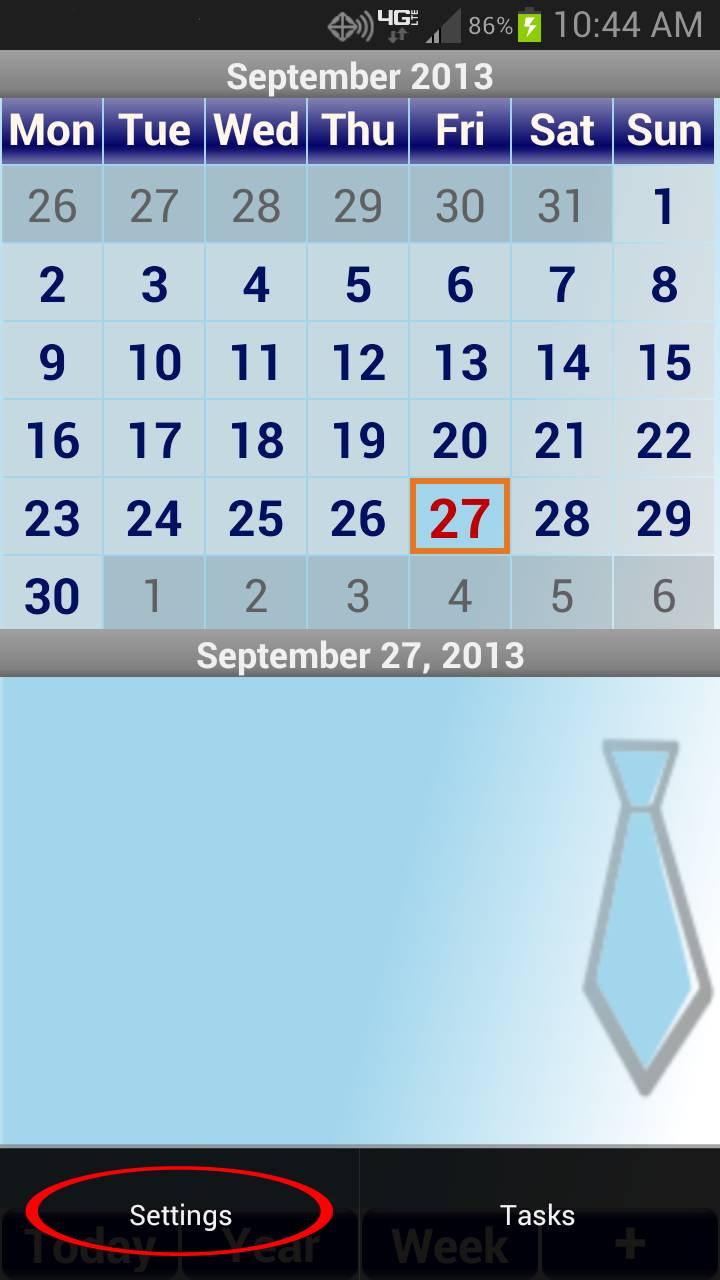
-
Click the Profiles Button.
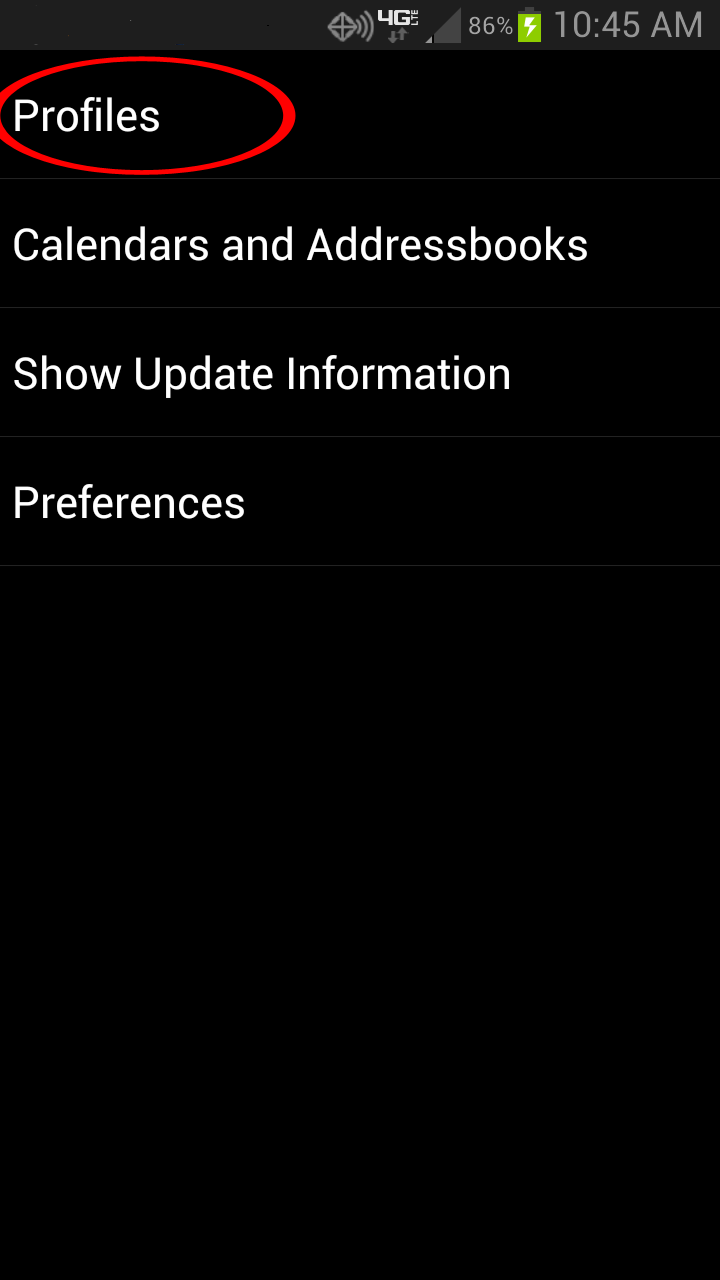
-
Adding a Profile
-
Click the Add Profile Button.
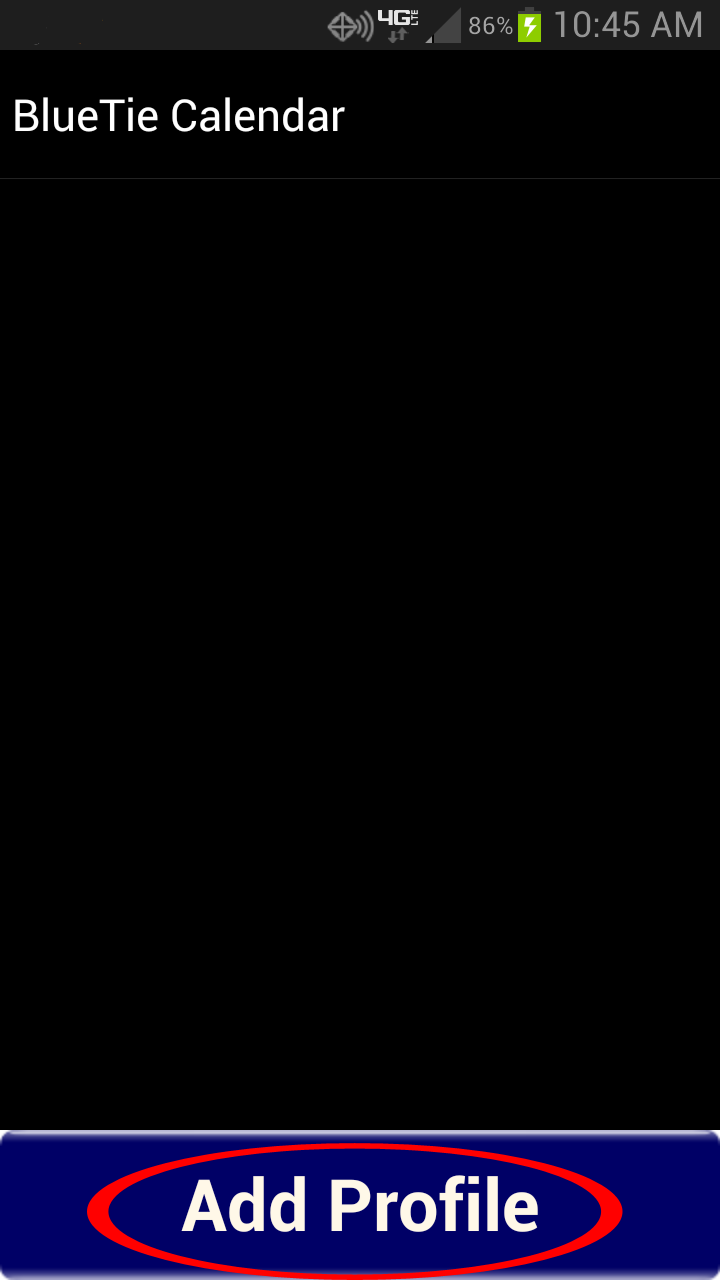
-
Click the BlueTie Logo.
-
Click on Username and enter your username and Click on Password and enter your Password and click Apply
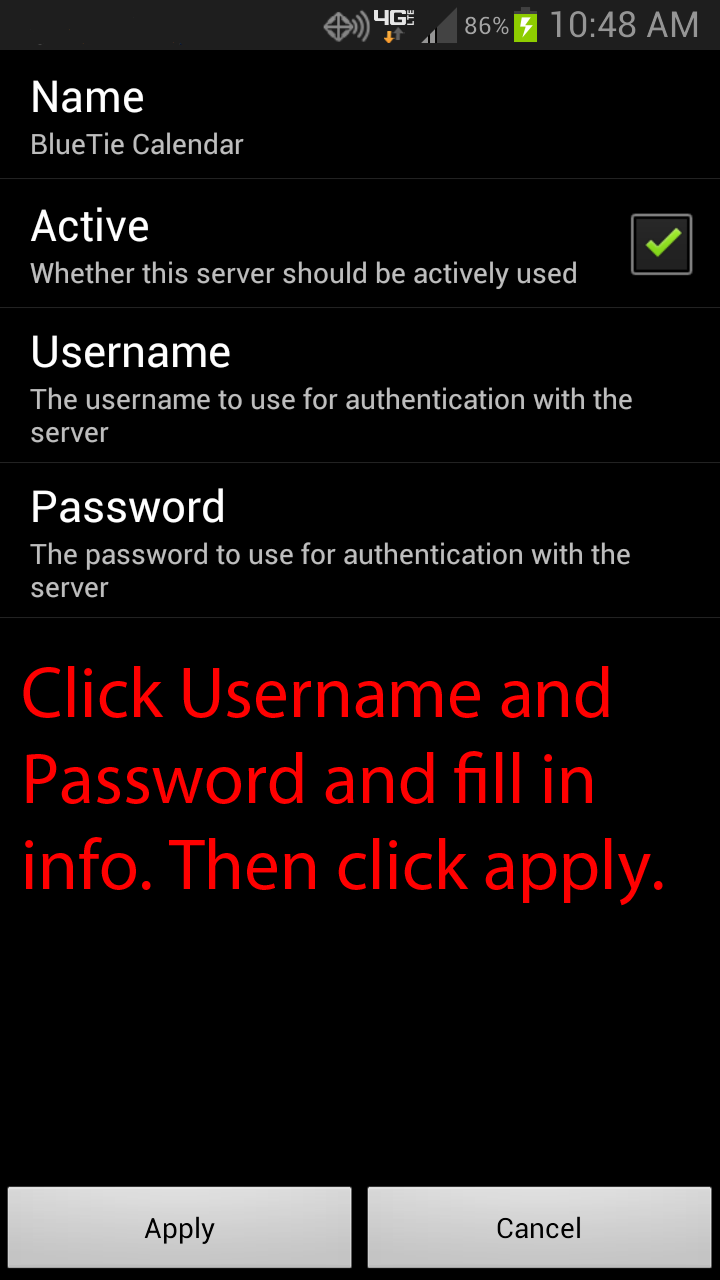
- Click Apply.
-
Click the Add Profile Button.
-
Removing a Profile
-
Long Press on the profile you want to delete.
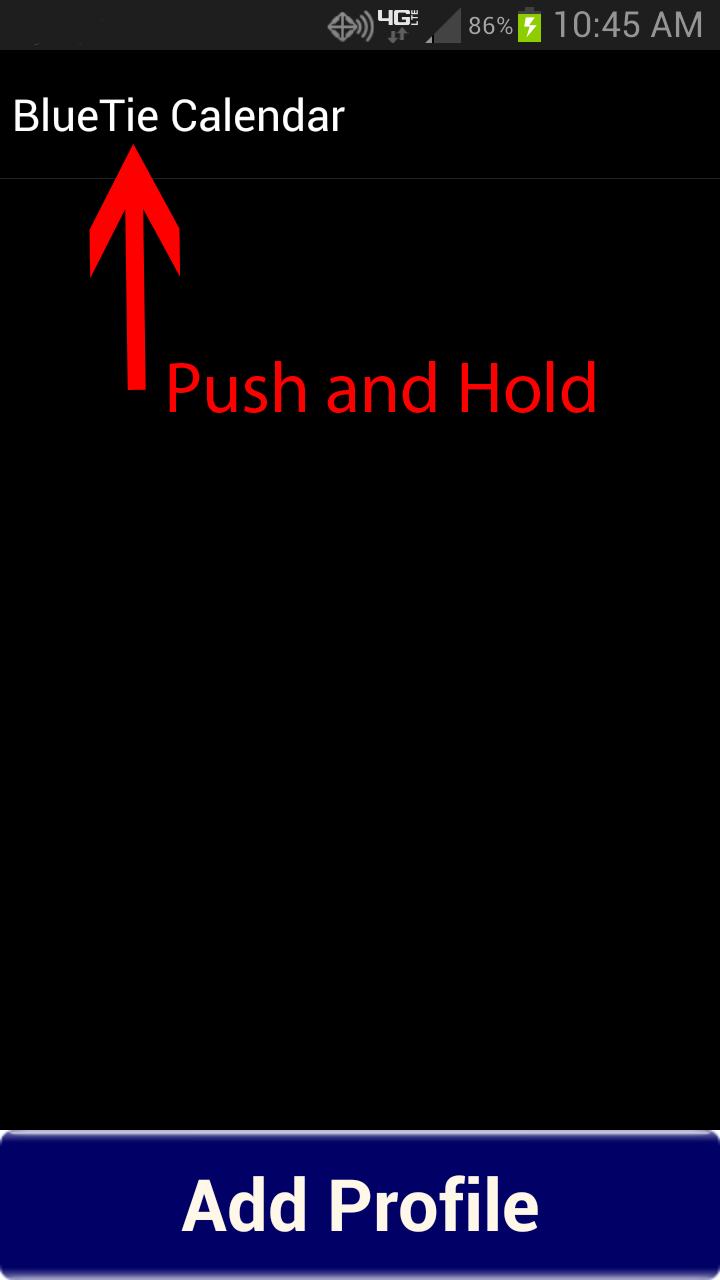
-
Click delete.
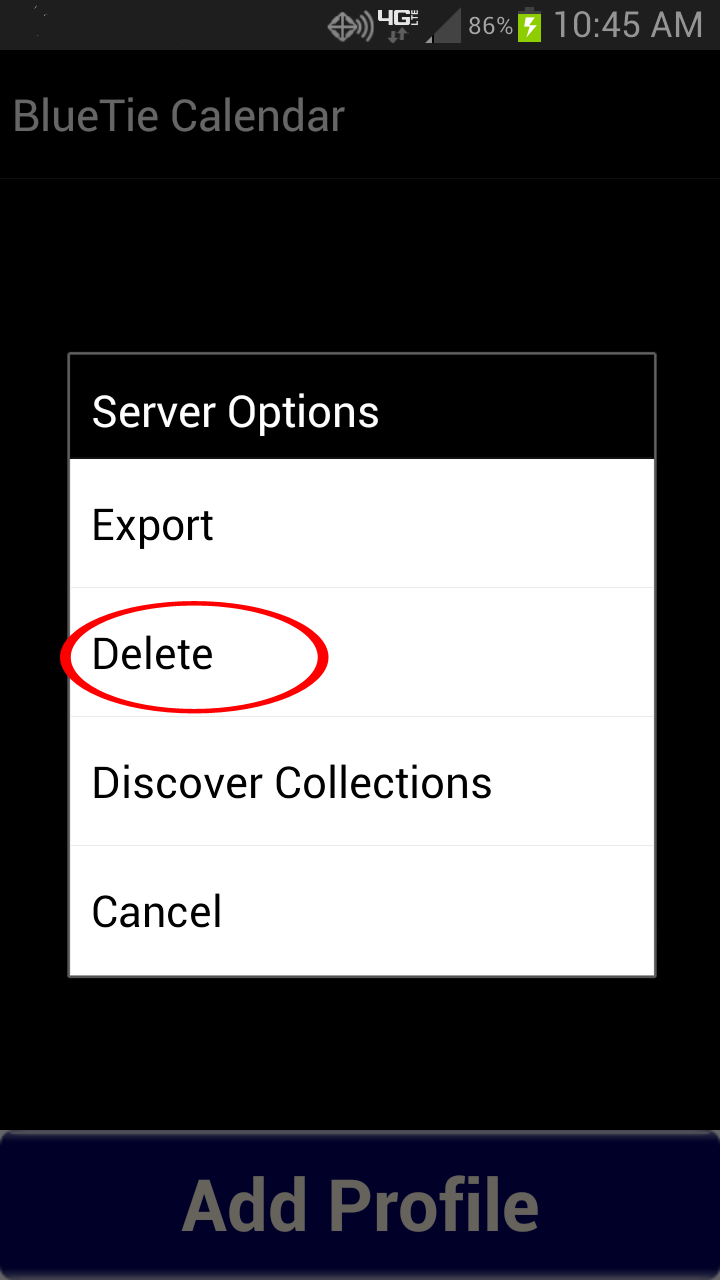
-
Long Press on the profile you want to delete.
-
Click the menu button on your phone and click settings.
-
Manually ReSync Your Calendars & Tasks
-
Do the following steps to manually sync your calendar:
-
a.) Click the menu key on your phone and press settings.
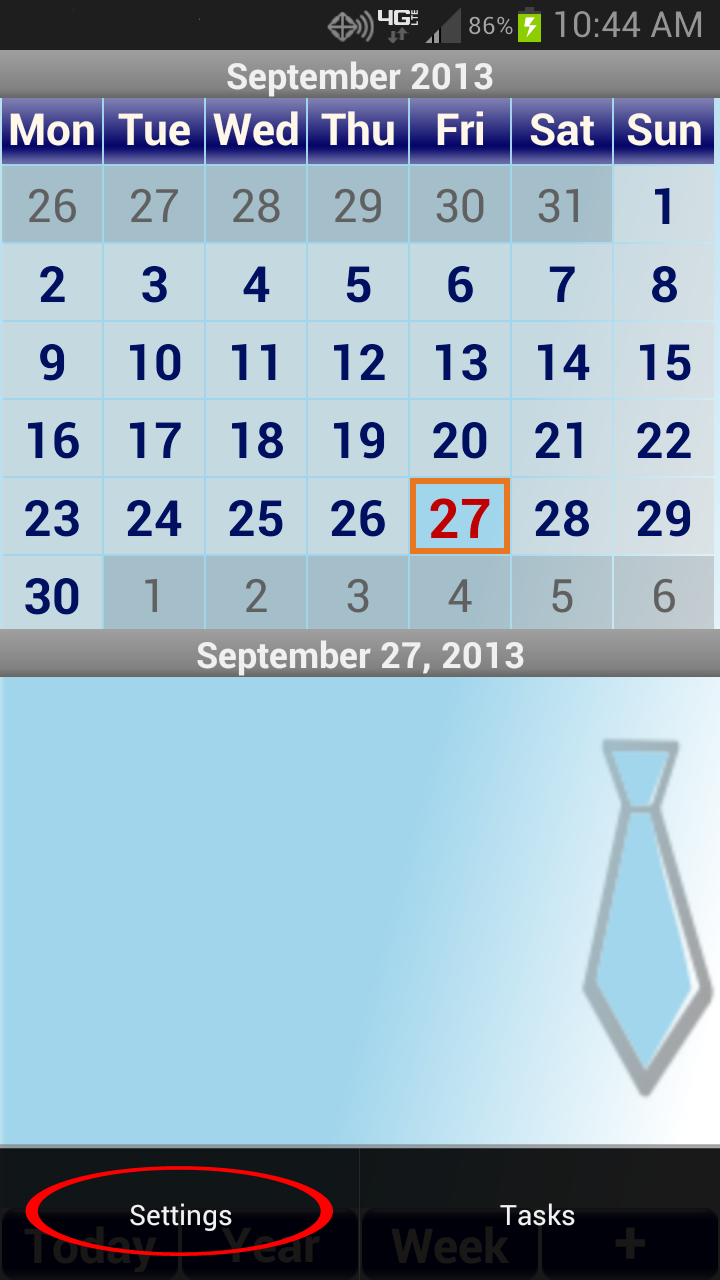
-
b.) Click on "Calendars and Addressbooks".
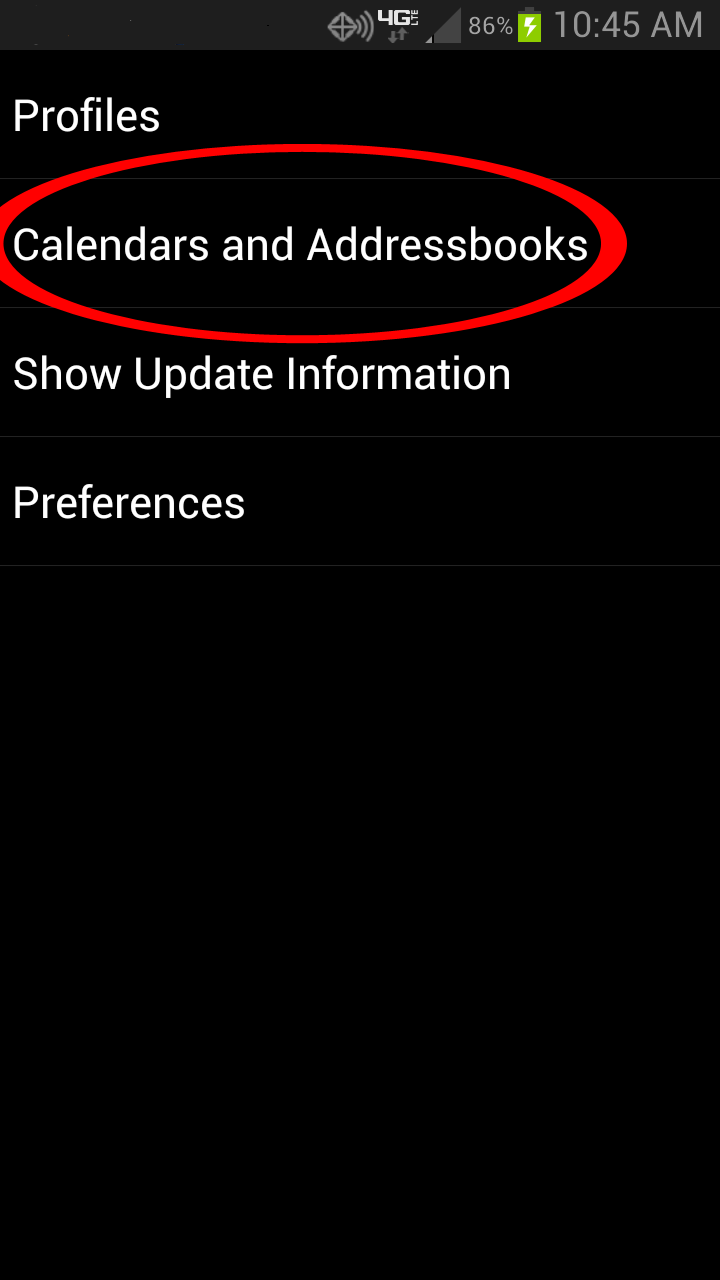
-
c.) Long press on the calendar that you wish to sync.
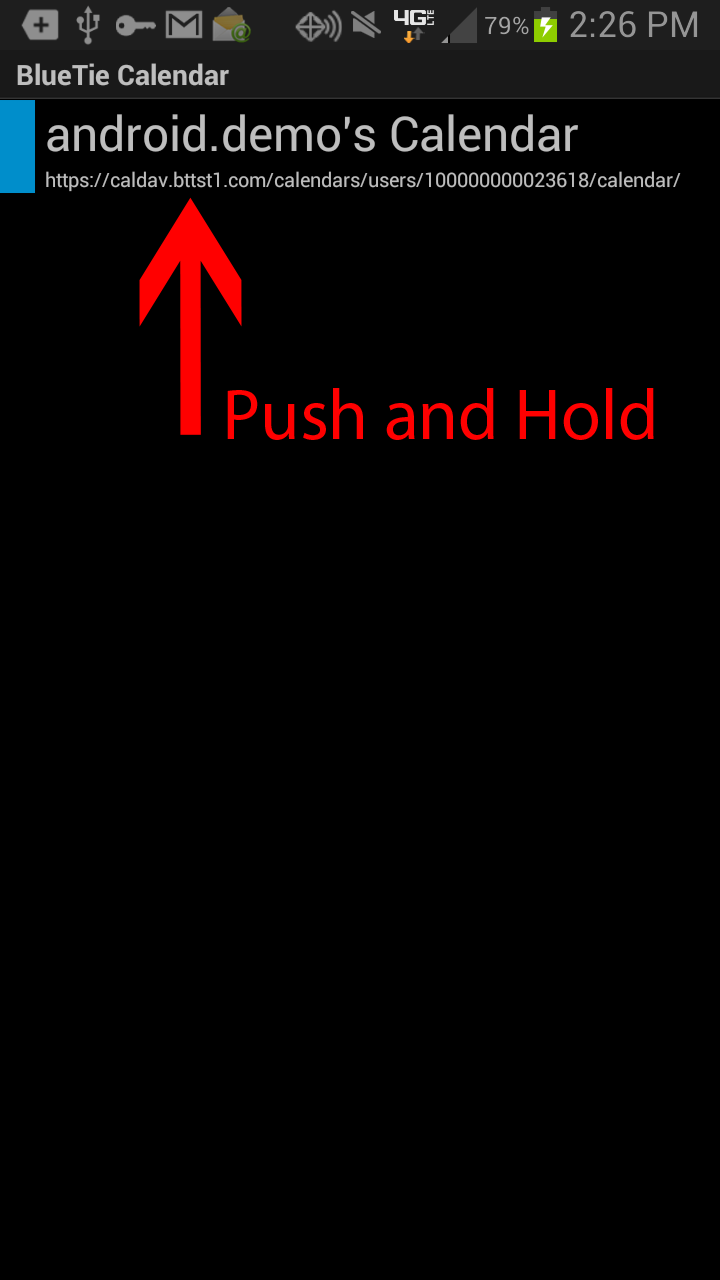
-
d.) Click "Synchronise Now or Force Resynchronisation".
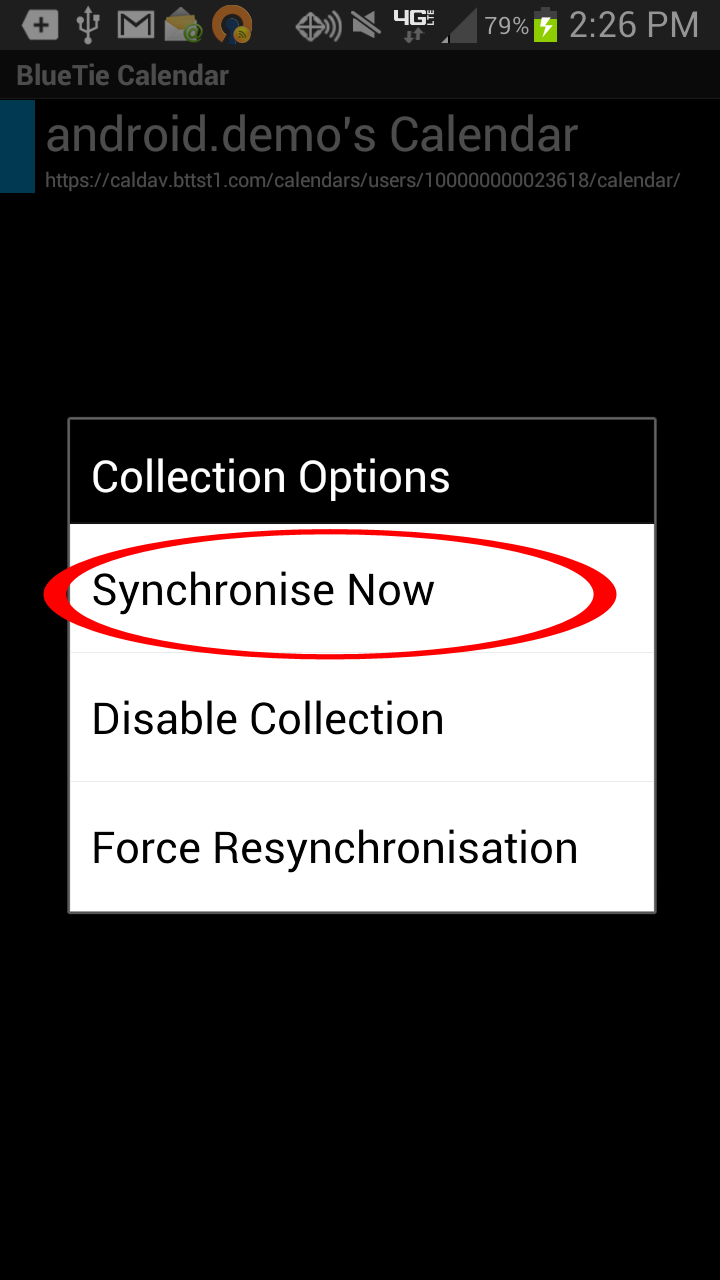
-
a.) Click the menu key on your phone and press settings.
-
Sync BlueTie contacts to your phone
-
Navigate to the settings menu on your phone.
-
Locate the accounts section and press "Add account"
-
Press "Add account" and select BlueTie Mobile Sync
-
Choose the address-book you want to sync with. Look for the word address-book in the smaller text
-
Tap the BlueTie Mobile Sync account in the settings menu
-
Select the BlueTie account to enable syncing
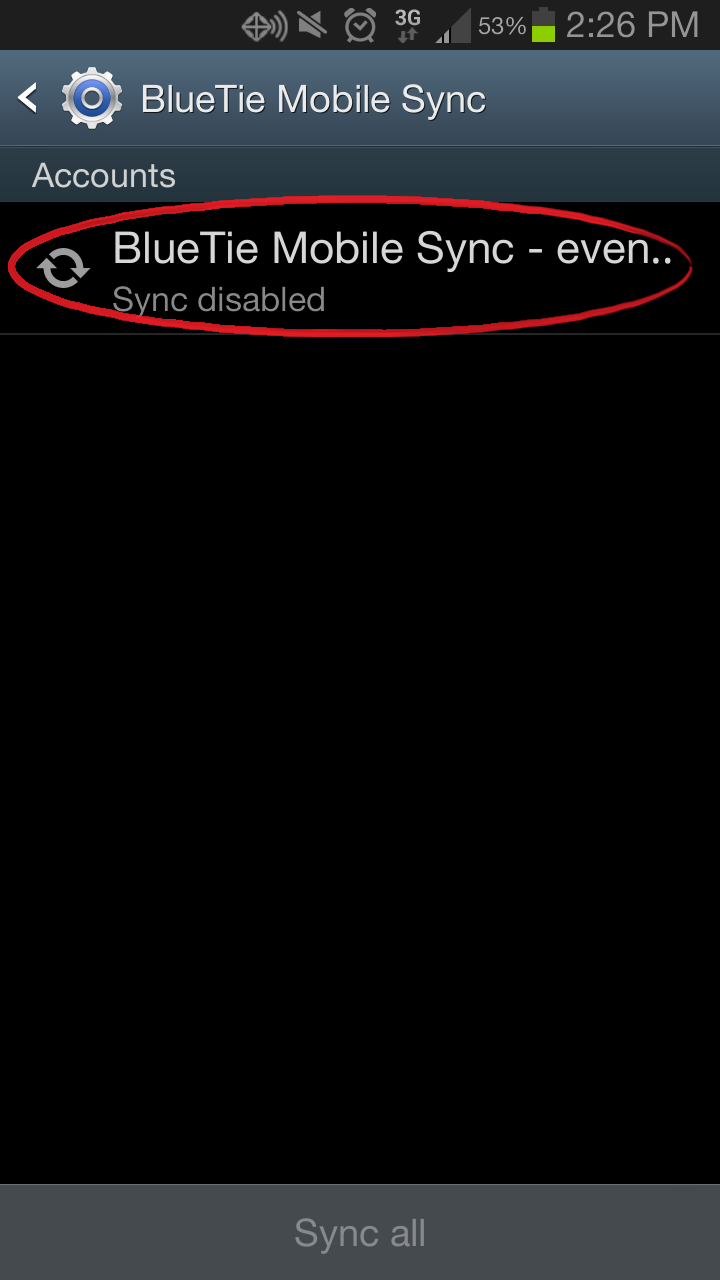
-
Tap the check box to begin syncing
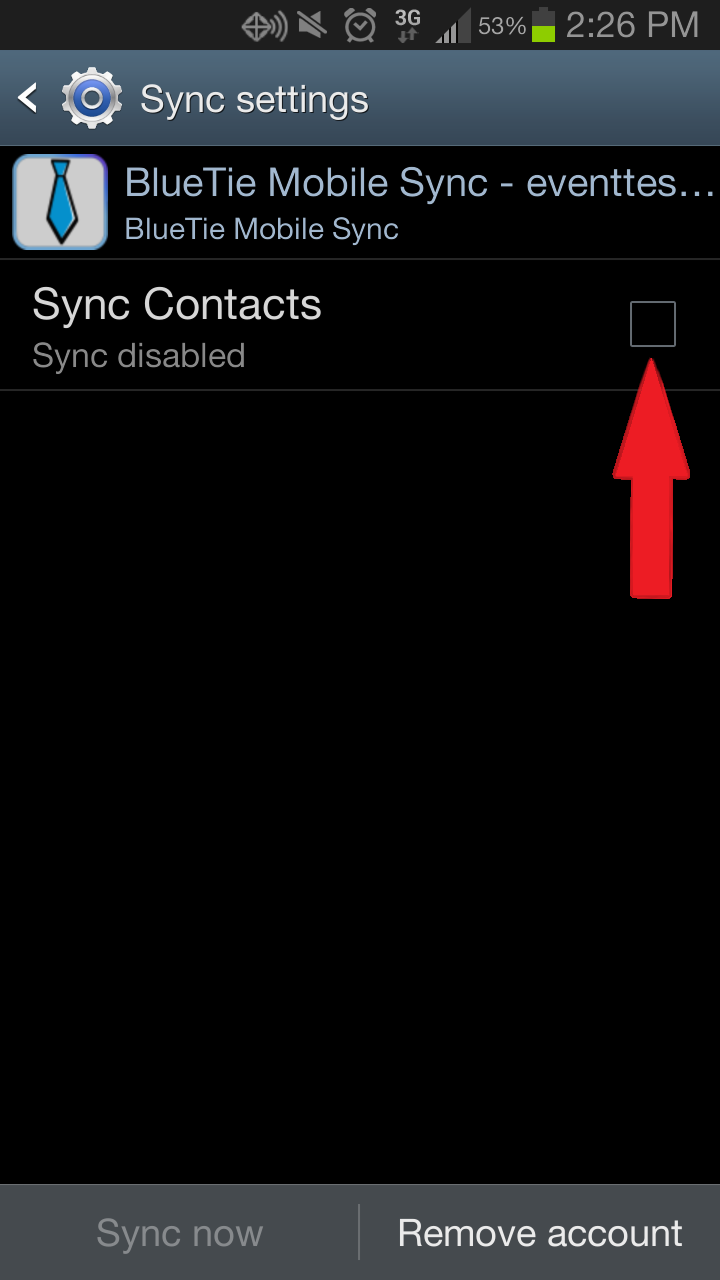
-
Success! Your BlueTie personal BlueTie contacts are now synced to your phone
You can view these contacts from the Android Contacts App.
Note: You can only sync contacts to your phone, not back to BlueTie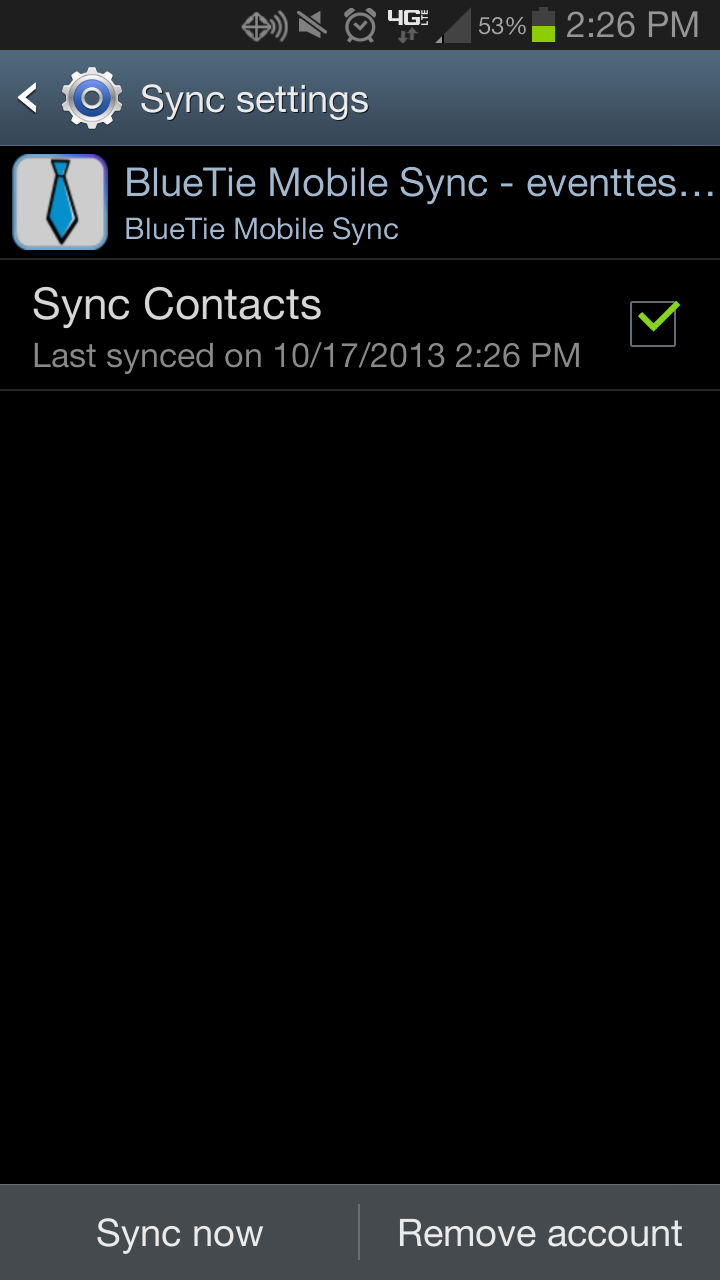
-
Navigate to the settings menu on your phone.
Calendar, Tasks, and Contacts for iPhone
Topics:
-
Setting up your account
-
Navigate to the Settings menu on your iPhone.
-
Select Mail, Contacts, Calendars
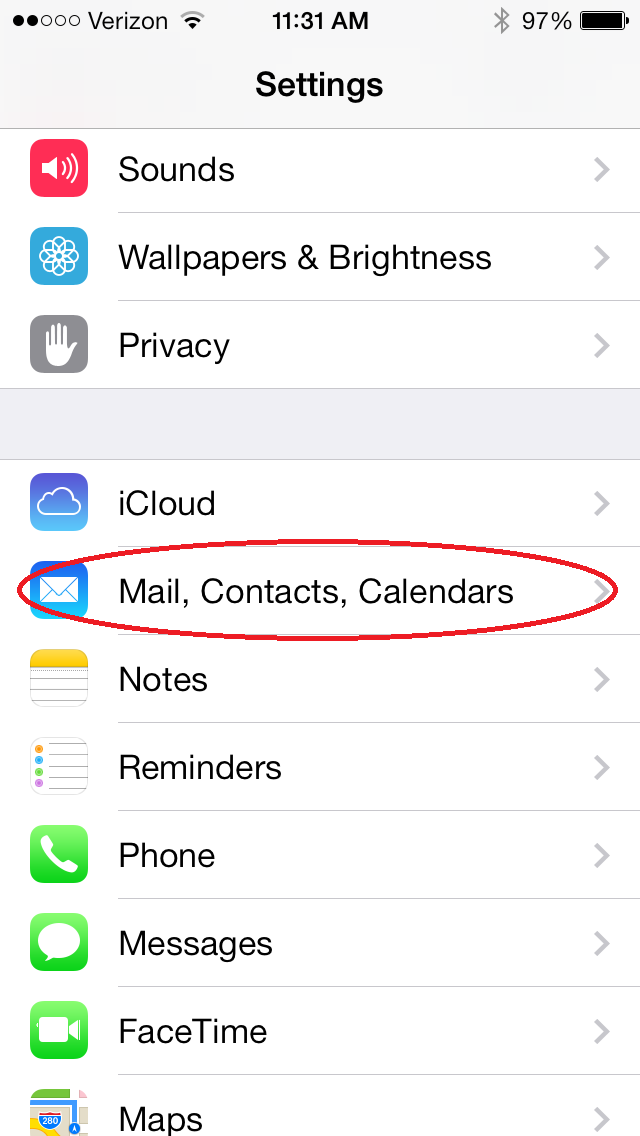
-
Select Add Account
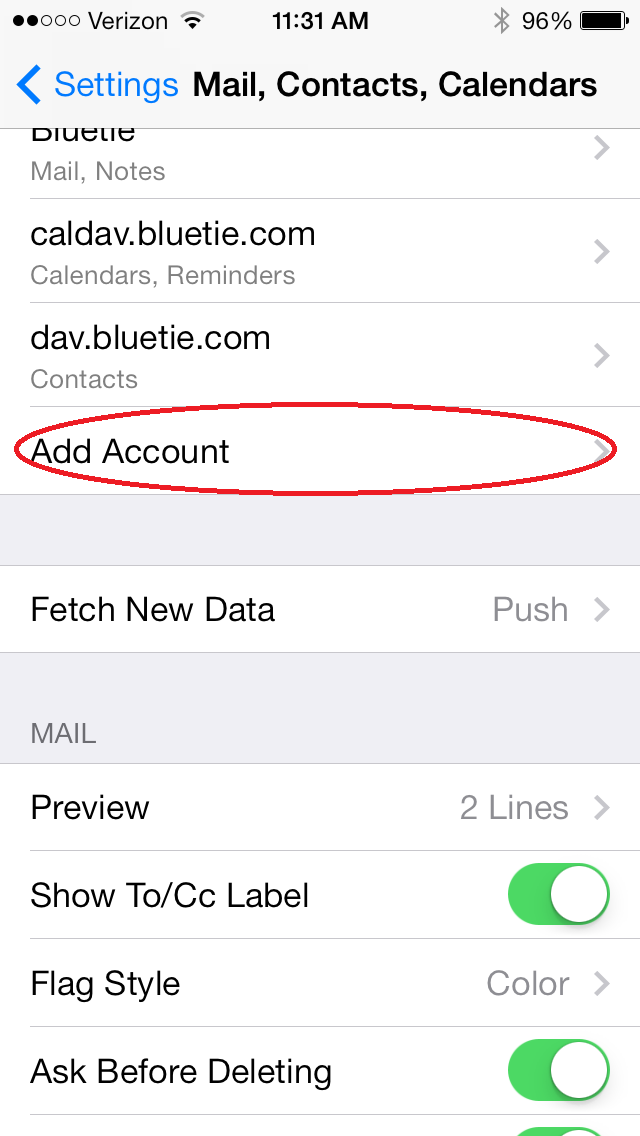
-
Select Other
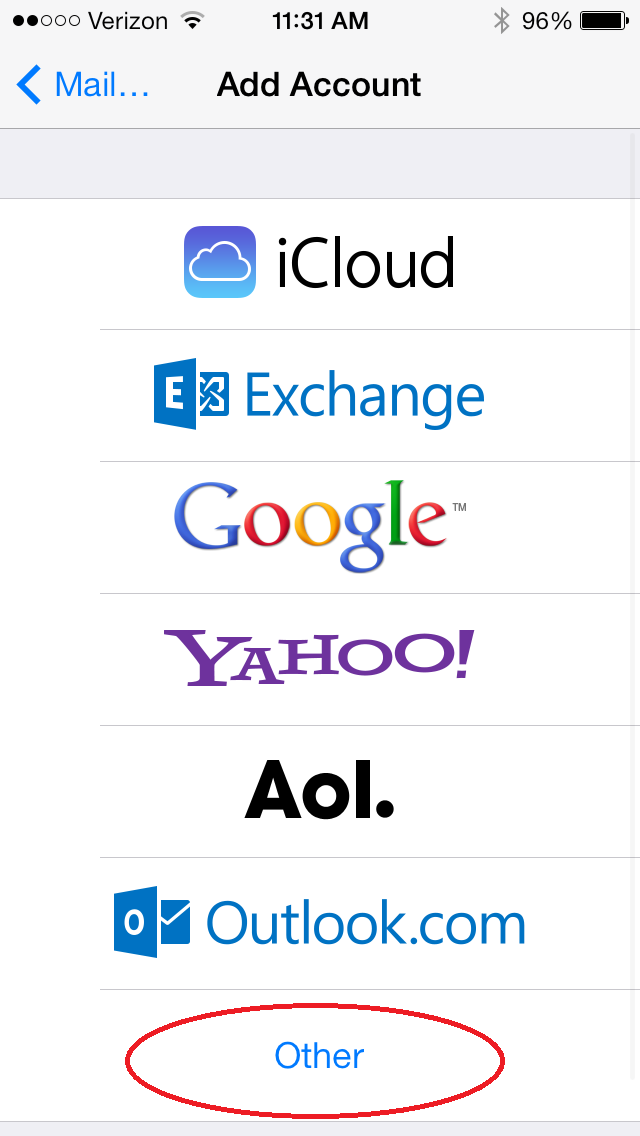
-
Here you can choose either Calendar or Contacts
Select Add CalDAV Account to sync your calendar
Select Add CardDAV Account to sync your contacts
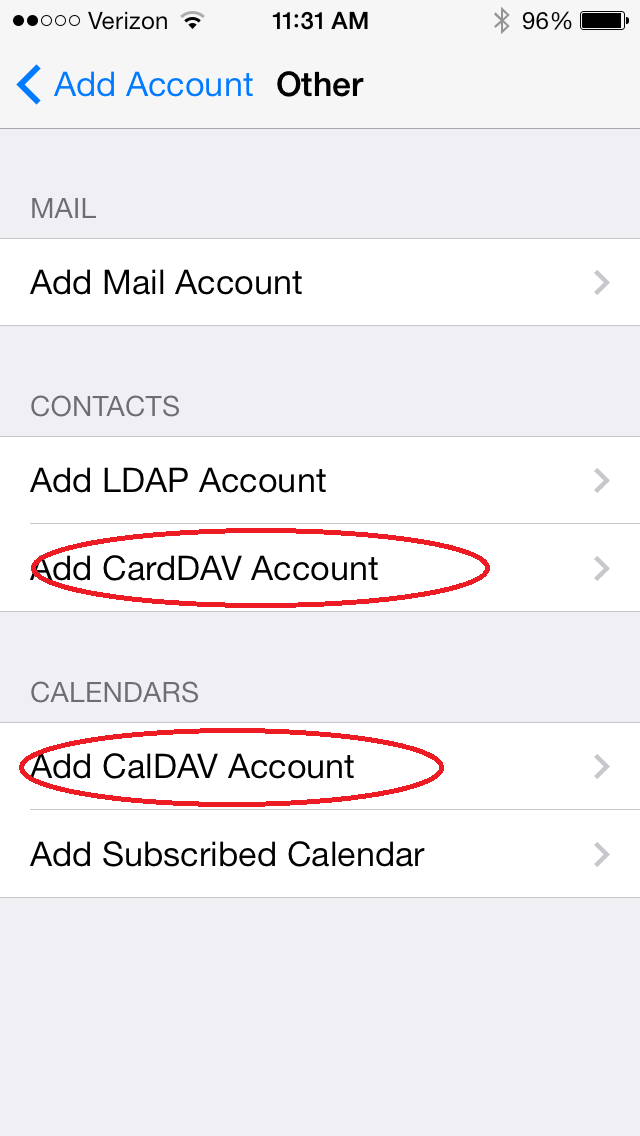
-
Enter 'dav.bluetie.com' into the server field
Also enter your bluetie login information
Select Next when done
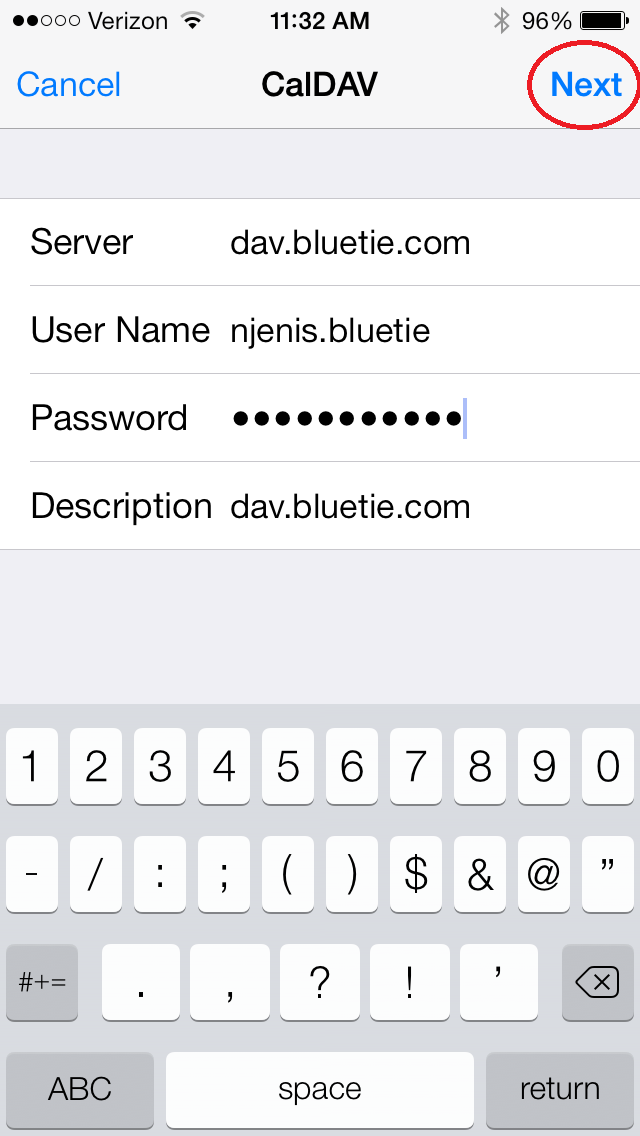
-
If you are setting up a calendar account, you can choose to enable
Calendar and/or Reminders (Tasks)
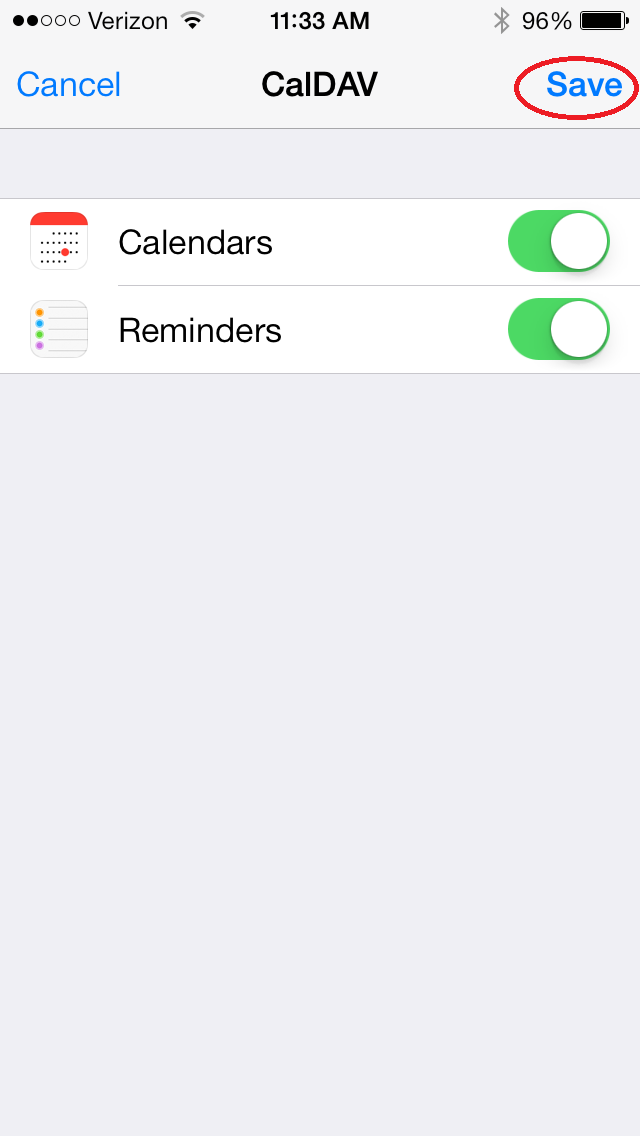
- Success! Your BlueTie events/contacts are now being synced with your iPhone
-
Navigate to the Settings menu on your iPhone.
-
View Calendar events
-
Open the Calendar App
-
Select Calendars on the bottom of the screen
-
If there is not already a check, press the account so it will show up on the calendar. You may also want to disable any other calendars that you don't need.
Additionally, you can refresh the calendar by swiping down on this screen
-
From the main calendar screen you can press a day to view events occurring on that day
-
To create a new event, press the plus symbol in the top right, or long press on a time during the day
-
Enter the details of the event you are creating
NOTE: Make sure the event is being added to the correct calendar, otherwise it will not sync with BlueTie
-
Press Done to save the event and have it sync with your BlueTie calendar
-
Open the Calendar App
-
View Task reminders
-
Open the Reminders App
-
Press anywhere on a new line to create a new task.
-
You can also edit the task more specifically by pressing the i symbol
-
Open the Reminders App
-
View Contacts
-
Open the Contacts App
-
Press on Groups in the top left to select which contacts to sync
-
Here you can select which contacts to show in the App
-
From main Contacts screen, you can create new contacts with the plus symbol
-
Open the Contacts App
-
Remove a Calendar/Contacts account
-
Navigate to the Settings menu on your iPhone.
-
Select Mail, Contacts, Calendars
-
Press the account you want to delete
-
Select Delete Account to remove the account from your iPhone
-
Navigate to the Settings menu on your iPhone.
Mobile Calendar, Contact and Tasks Sync
...
Mozilla Thunderbird
Please click the links below for instructions on setting up Mozilla Thunderbird.
POP Setup
Configuring POP3 Setup for Thunderbird
1. Click on Tools
2. Click on Account Settings
3. Click on Add Account
4. Select Email Account
5. Fill in Your Name and Email Address and click the Next button
6. Select POP as the type of incoming server
7. Type pop.bluetie.com into the Incoming Server field and click the Next button
8. Type your User Name (username.enterprise or email address) and click Next
9. Leave Account name as your email address and click Next
10. Verify Download messages now is checked and Click the Finish button
11. You will be prompted for the password, fill in and choose if you want Thunderbird to remember the password and then press OK
12. Click Tools and select Account Settings
13. Click Outgoing Server from the pane on the left and click the Add button
14. For the Server Name, type smtp.bluetie.com
15. Check the box for Use name and password and fill in your User Name (username.enterprise)
16. Click the OK button and then click the OK button again
Configuring POP3 Setup for Thunderbird w/SSL
1. Click on Tools
2. Click on Account Settings
3. Click on Add Account
4. Select Email Account
5. Fill in Your Name and Email Address and click the Next button
6. Select POP as the type of incoming server
7. Type pop.bluetie.com into the Incoming Server field and click the Next button
8. Type your User Name (username.enterprise or email address) and click Next
9. Leave Account name as your email address and click Next
10. Verify Download messages now is checked and Click the Finish button
11. You will be prompted for the password, fill in and choose if you want Thunderbird to remember the password and then press OK
12. Click Tools and select Account Settings
13. Click Outgoing Server from the pane on the left and click the Add button
14. For the Server Name, type smtp.bluetie.com
15. Check the box for Use name and password and fill in your User Name (username.enterprise)
16. Under the Use Secure Connection check SSL
17. Click on the Server Settings and select Use Secure Connection (TLS)
18. Click the OK button and then click the OK button again
IMAP Setup
IMAP Setup
1) Click Create a new account
2) Select Email account
3) Fill in Your Name and Email Address and click the Next button
4) Select IMAP as the type of incoming server
5) Type imap.bluetie.com into the Incoming Server field
6) Type your User Name (username.enterprise or email address) and click Next
7) Leave Account name as your email address and click Next
8) Verify Download messages now is checked and Click the Finish button
9) You will be prompted for the password, fill in and choose if you want Thunderbird to remember the password and then press OK
10) Click Tools and select Account Settings
11) Click Outgoing Server from the pane on the left and click the Add button
12) For the Server Name, type smtp.bluetie.com
13) Check the box for Use name and password and fill in your your User Name (username.enterprise)
14) Click the OK button and then click the OK button again
Configuring IMAP Setup for Thunderbird w/SSL
1. 1) Click on Tools
2. Click on Account Settings
3. Click on Add Account
4. Select Email Account
5. Fill in Your Name and Email Address and click the Next button
6. Select IMAP as the type of incoming server
7. Type imap.bluetie.com into the Incoming Server field
8. Type your User Name (username.enterprise or email address) and click Next
9. Leave Account name as your email address and click Next
10. Verify Download messages now is checked and Click the Finish button
11. You will be prompted for the password, fill in and choose if you want Thunderbird to remember the password and then press OK
12. Click Tools and select Account Settings
13. Click Outgoing Server from the pane on the left and click the Add button
14. For the Server Name, type smtp.bluetie.com
15. Check the box for Use name and password and fill in your your User Name (username.enterprise)
16. Under the Use Secure Connection check SSL
17. Click on the Server Settings and select Use Secure Connection (SSL)
18. Click the OK button and then click the OK button again
Updated BlueTie Home POP/IMAP/SMTP Server Settings
When configuring your mail clients for your BlueTie Home account, please use the following settings:
IMAP is highly recommended over POP.
IMAP Incoming Server: imap.bluetiehome.com
IMAP Incoming Server Port: 993
Please turn on SSL
POP Incoming Server: pop.bluetiehome.com
POP Incoming Server Port: 995
Please turn on SSL
SMTP Outgoing Server: smtp.bluetiehome.com
SMTP Outgoing Server Port: 587
Please turn on TLS
If you have any questions, please reach out to our support team at support@bluetiehome.com
Mobile Sync
Depending on the make and model of your device, you may use your phone's own IMAP and SyncML application, or use our free software built specifically for your phone.
Check to see if your device is supported:
Outlook Sync
BlueTie's Outlook Sync allows users to synchronize their Calendar, Contacts and Tasks between Outlook and their BlueTie account.
Cancel Sync
To cancel a sync that is in progress, click on the cancel sync row in the Outlook Sync Client.This will cancel the sync and update the sync status found under each application.
Capture Log Files
In some instances, BlueTie may need your Outlook Log Files to troubleshoot Outlook-related issues.
To access the Log Files:
1. Open Outlook
2. Click the Sync Icon
3. In the Sync Menu, click TOOLS
4. Select LOGGING
5. When the Logging dialogue box appears, click VIEW LOG
6. A Windows Notepad window appears, detailing all the tasks attempted in the most recent synchronization
7. Save this file to your computer
8. Send to BlueTie Support as requested by the Support Rep.
Change Password Within Sync Client
Whenever you change your password within BlueTie, this change will need to be reflected within the Outlook Sync client.
This is managed within the Sync Client manager, which may be accessed by:
1. Open Outlook
2. Click on the Sync Icon (top-left corner of Outlook)
3. In the Sync window that opens, click TOOLS.
4. Click OPTIONS
5. Click ACCOUNT on the left-side of the window
6. Enter your current password in the Password field.
7. Click OK
Change Time Between Sync Attempts
You may change the amount of time between syncing your BlueTie account and Outlook at any time.
This is managed within the Sync Client manager, which may be accessed by:
1. Open Outlook
2. Click on the Sync Icon (top-left corner of Outlook)
3. In the Sync window that opens, click TOOLS.
4. Click OPTIONS
5. Ensure that the SYNC option is selected on the left side of the window
6. Within the SCHEDULER heading, click the SYNCHRONIZE EVERY box, and using the dropdown menu, select how often you would like the Sync to occur.
7. Click OK
Configure Outlook Sync Client
After the successful download, the Outlook Client will open automatically. This may take a few minutes.
The user can also access the sync client anytime following the‘Start>Programs>Outlook Sync>Outlook Sync Plug In’ path.
Once the client is open, users will need to enter their username or email address and password (shown below) – this is required for first time use of the client, and must be updated whenever the user modifies their password. All of the following settings can be accessed, and modified, at anytime.
Downloading Outlook Sync
The Outlook Sync tool can be downloaded directly from your BlueTie Preferences.
To access your Preferences:
1. Login to your BlueTie account.
2. Click on Preferences, located in the top-right corner of your account.
To download the Outlook Sync tool:
1. Click on the Outlook Sync preference.
2. Click Download.
Instructions for installing Outlook Sync may be found here.
Installing Outlook Sync
NOTE: You must first download Outlook Sync to your computer.
Instructions may be found here.
To install the Outlook Sync tool, please follow these instructions:
1. Open the Outlook Sync Installer (from your computer); a new window will open. Outlook must be closed to run the installer.
2. Choose Install Location
3. Click Finish (ensure that the Choose to Run box is checked)
4. The Outlook Sync Popup Menu will open
5. Open the Sync Menu Options. This can be done by clicking on TOOLS, and then OPTIONS, or by simply clicking on the SYNC ALL button.
6. Enter your BlueTie username and password in the appropriate fields.
7. Click the Sync Button on the left of the menu, and Uncheck the box next to Notes (which is currently unsupported by BlueTie).
8. Click OK
9. Click the SYNC ALL button (or, if you only wish to sync specific features, click the appropriate button).
Depending on the amount of data in your account, it may take a few minutes to synchronize your BlueTie account with Outlook.
Once your accounts are In-Sync, Outlook will open.
To perform future Syncs, simply click the Sync icon in the top-left corner of Outlook.
Sync BlueTie and Outlook with Outlook Sync Client
Before synchronizing your BlueTie Account with Outlook, you will need to both Download and Install the Outlook Sync client.
Instructions to Download may be found here.
Instructions to Install the client may be found here.
Please then open the Outlook Sync client and go to File>Synchronize or simply double-click on the sync all option. You can manually sync an individual application by double-clicking on it as well.
If you have configured an automated sync schedule, you do not have to perform these steps. However, in order for the schedule to perform, the Outlook Sync client must be active – Outlook and the web application may be closed.
Sync BlueTie and Outlook within Outlook Client
In Outlook a sync can be initiated by either clicking the Outlook Sync shortcut icon or by clicking on the Outlook Sync Plug In option in the menu bar.
Uninstall Sync Client
To begin the uninstall process, go to:
Start>Programs>Outlook Sync >Uninstall.
Alternatively, go to Start>Control Panel>Add or Remove Programs.
Select Outlook Sync Plug in and then click the Change/Remove button. Click Yes to continue.
At this point in the uninstall process you can choose to retain or delete all client users' local files and settings. Retaining the settings will speed up your use of any new installations of the sync client. Click Uninstall to start the removal of the client. Once the process is complete a confirmation will appear and you can close the windows.
Preferences
How-To Edit Personal Preferences
Add/Edit/Delete Credit Card
BlueTie allows you to add a credit card(s) to your application to be used with BlueTie's featuretisment partners. To add/edit/delete a credit card:
1. Click on the Preferences menu located in the upper right hand of your account. The preferences window will open.
2. Click Credit Cards under the General heading
3. Click Add Card to add a new credit card, Edit to edit already saved information, or Delete to delete a card already on file.
4. Click Save located in the top left corner of the preferences window
Attached Contact Information to Sent Emails
To set your account to automatically attach your contact information (in vcard format) to all outbound email:
1. Click on the Preferences menu located in the upper right hand of your account. The preferences window will open
2. Click General Settings under the Email heading
3. Under the Compose Email heading, set the Automatically attach contact info dropdown to attach the appropriate information to your emails.
You may choose between None, Work Information, Personal Information, All Information.
4. Click Save located in the top left corner of the preferences window
Automatically Delete Trash
You may set up your account to automatically delete the contents of your Trash folder after every logout, or when the mail within the Trash folder is either one or two weeks, or one month old.
NOTE: Once the mail has been deleted from the trash folder, you will no longer be able to retrieve those messages. It's best to periodically check your trash folder for any accidentally deleted messages to ensure that you don't lose critical or necessary emails.
To edit your setting, please follow these steps:
1) Click on the Preferences menu located in the upper right hand of your account. The preferences window will open.
2) Click on General Settings underneath the Email Heading.
3) Scroll to the bottom of the window.
4) Underneath the Cleanup heading, use the dropdown to select the duration you'd like to keep the messages within your Trash folder before deletion.
5) Click Save in the top-left corner of the preferences window
Change Date Format
To choose your desired date display format:
1. Click on the Preferences menu located in the upper right hand of your account. The preferences window will open.
2. Click Regional Settings underneath the General heading
3. Use the Date Format dropdown to select the appropriate date display.
NOTE: Your options are MM/DD/YYYY or DD/MM/YYYY
4. Click Save located in the top left corner of the preferences window
Change Layout Settings
To change your Layout Autosave Preferences:
1. Click on the Preferences menu located in the upper right hand of your account. The preferences window will open.
2. Click Layout Settings under the General heading
3. Select the desired Layout Autosave option
4. Click Save located in the top left corner of the preferences window
Change Password
Follow these steps to successfully change your password:
1) Click on the Preferences menu located in the upper right hand of your account. The preferences window will open.
2) Click Change Security Settings
3) Underneath Change Password enter your password information. The password requirements are found to the right of the fields.
NOTE: You will need to enter your current password first, then enter, and re-enter the new password.
4) Click Save in the top-left corner of the preferences window
Change Session Timeout
Follow these steps to successfully change your Session Timeout setting:
1) Click on the Preferences menu located in the upper right hand of your account. The preferences window will open.
2) Click Change Security Settings
3) Underneath Session Timeout enter the desired number of minutes you'd like your account to remain open with inactivity.
NOTE: You may enter '999' minutes to set your account to never automatically logout.
4) Click SAVE in the top-left corner of the preferences window
Change Time Format
1. Click on the Preferences menu located in the upper right hand of your account. The preferences window will open.
2. Click Regional Settings underneath the General heading
3. Use the Time Format dropdown to choose the appropriate time display.
NOTE: You may choose between a 12 hour or 24 hour clock.
4. Click Save located in the top left corner of the preferences window
Change Time Zone
Follow these steps to change your Time Zone:
1. Click on the Preferences menu located in the upper right hand of your account. The preferences window will open.
2. Click Regional Settings underneath the General heading
3. Use the Time Zone dropdown to select the appropriate Time Zone
4. Click Save in the top-left corner of the preferences window
Creating and Editing An Email Signature
Follow these steps to create and/or edit your Email Signature:
1) Click on the Preferences menu located in the upper right hand of your account. The preferences window will open.
2) Under Email heading click Name and Signature
3) Within the Signature text box, enter your desired Email Signature
4) Click Save in the top-left corner of the preferences window
Disable/Enable Yahoo! Highlight & Search
To Disabable or Enable the Yahoo! Highlight & Search feature:
1. Click on the Preferences menu located in the upper right hand of your account. The preferences window will open
2. Under the Email section, click General Settings
3. Under the Viewing Emails heading you may flag Highlight and Search as On or Off.
4. Click Save located in the top left corner of the preferences window
Locate Support Information
To locate your Support Contact information:
1. Click on the Preferences menu located in the upper right hand of your account. The preferences window will open.
2. Click Support Information under the General heading
This will allow you to:
- View your Support ID
- Email BlueTie Support
- View BlueTie Support's phone number and hours of operation
- Link directly to BlueTie's support site
My Day Notifications
To edit your My Day Notifications settings:
1. Click on the Preferences menu located in the upper right hand of your account. The preferences window will open
2. Click Notifications under the My Day heading
3. Under Notifications Display Settings, use the dropdowns to select the whether you'd like your Notifications to be automatically deleted, and how many notifications you'd like to have displayed.
4. Under Special Event Notifications, choose how long you would like an event to be displayed on your My Day page after the event has passed.
4. Click Save located in the top left corner of the preferences window
Save New Email Addresses
Your BlueTie account has the ability to compare your sent email against your contact list to look for new email addresses. If the address has not been added to your contact list yet, you may set your account to automatically save that address.
1. Click on the Preferences menu located in the upper right hand of your account. The preferences window will open
2. Click Save New Addresses under the Contacts heading
3. Click Yes next to Check sent mail for new addresses
4. Use the Save new addresses in dropdown to select the group you would like new contacts saved to
5. Click Save located in the top left corner of the preferences window
Set Account to Automatically Save Drafts
To set your BlueTie account to automatically save Email drafts as your are composing your message:
1. Click on the Preferences menu located in the upper right hand of your account. The preferences window will open
2. Click General Settings under the Email heading
3. Under the Compose Email heading, use the Auto-save emails while composing dropdown to select the frequency that you would like your email draft to be saved
4. Click Save located in the top left corner of the preferences window
Set New Email Message Notification
To set your BlueTie Application to automatically check for (and notify you) of new email messages:
1. Click on the Preferences menu located in the upper right hand of your account. The preferences window will open
2. Click General Settings under the Email heading
3. Use the dropdown below New Message Notifications to select how frequently you would like BlueTie to check for new emails in your account
4. Select Yes or No to be notified (via popup) of new messages in your Inbox
5. Click Save located in the top left corner of the preferences window
Set Number of Displayed Email Messages Per Page
To set the number of messages you may view in one page within your Email Application:
1. Click on the Preferences menu located in the upper right hand of your account. The preferences window will open
2. Click General Settings under the Email heading
3. Use the dropdown under the Viewing Emails heading to select your desired number of messages per page. You may choose between 10, 20 or 50.
4. Click Save located in the top left corner of the preferences window
Set Your Account to Automatically Save Sent Messages
To enable or disable the setting to have your account automatically save sent messages:
1. Click on the Preferences menu located in the upper right hand of your account. The preferences window will open
2. Click General Settings under the Email heading
3. Under the Compose Email heading, set Automatically save outgoing messages to Yes or No
4. Click Save located in the top left corner of the preferences window
Turn on Rich Text Email Composer
To turn on Rich Text Email Compser, and send emails with different fonts, colors, sizes, etc:
1. Click on the Preferences menu located in the upper right hand of your account. The preferences window will open
2. Click General Settings under the Email heading
3. Under the Compose Email heading, select the Rich Text Composer button.
4. Click Save located in the top left corner of the preferences window
NOTE: You may revert back to Plain Text Composer at any time by selecting Plain Text Composer and saving your settings
Update Secret Question and Answer
Follow these steps to update your Secret Question and Answer for Security:
1) Click on the Preferences menu located in the upper right hand of your account. The preferences window will open.
2) Under General Settings click Change Security Settings
3) Under the Secret Question/Answer heading, use the dropdown to select your prefered Secret Question
4) In the text box immediately below the Question, enter your Secret Answer
5) Click Save in the top-left corner of the preferences window
Real-time Mobile Email
BlueTie Real-time Mobile Email synchronizes email, contacts, calendar, and tasks between your mobile phone and BlueTie’s award-winning hosted email service, providing flexibility to access the same consistent set of information anytime from anywhere like never before.
Enabling Real-time Mobile Email - Administrator
Real-time Mobile email is a paid feature and must be enabled by an Enteprise Administrator.
To enable (Enterpris Managers):
1. Click Enterprise Manager button
2. Click on the username that you wish to enable Real-time Mobile Email for
3. Click the Modify Access button
4. Check the box next to Real-Time Mobile Email*
5. Click Save
*Real-time Mobile Email also requires the user to have Mobile Sync and when checking the box, you will be prompted to also select Mobile Sync, if it is not already enabled.
Once the above is completed, instruct your user to log out and then log back in. They will then access the Mobile Wizard via their user preferences menu.
Enabling Real-time Mobile Email - User
The first step to enabling the Real-time Mobile Email feature is to enroll your device. To enroll your device:
1. From the web application, click on Preferences
2. Click Mobile Sync from the General Preferences menu
3. Using the Wizard, select your device include, manufacturer, model, country, carrier and phone number
*Confirm that the device you've selected supports Real-time Mobile Email. This confirmation is displayed in the wizard immediately after you've completed your selections. If your device is not supported, you should contact your administrator to have the functionality disabled in order to avoid charges. To find a device that is supported, visit the supported devices list anytime here.
4. Click Next to continue
5. Verify your password (same password as your account), Click OK
6. Using the Wizard, either send your device the download instruction or using a browser on your device, type in the URL listed in the Wizard.
Registered Email
.
How can I receive a receipt which acknowledges that the recipient has received the message that was sent?
Click on user preferences>Email>Registered Mail>Under the receipts heading you would want to then check the check box to activate this feature.
Acknowledgment emails generally come within a few minutes.
How do I enable SecuRmail encryption?
Click on user preferences>Email>Registered Mail>Under the ENCRYPTION header you will see a checkbox that states ‘Enable Secu®mail encryption’. Please check this to activate this feature.
You can also choose to check the box underneath this option to have Encryption turned on by default on all Registered emails that are sent.
How do I let the people that I am sending to know I am sending with proof of delivery, content and time?
1) Click on user preferences>Email>Registered Mail>Banner Section
2) You can choose to have the system always ask if you want to enable these banners which will alert the recipient or you can choose to always enable these banners.
How do I send a Registered Email once this has been enabled on my account?
Once you have composed a new email in the email compose window, if the Registered mail product is activated on the user account, you will see an option to ‘Send Registered’. You would want to click on this and a new dialog box will pop up. This dialog box will give you options to send this registered email as a marked or unmarked Registered email and also give you the option to send with the SecuRmail encryption. For more information on the SecuRmail encryption, please follow this link:
http://support.bluetie.com/node/1135
Sending Flowers with FTD
Learn about sending flowers with FTD right from your account.
Send someone flowers or a gift with FTD
There are multiple ways to shop with FTD within your BlueTie application.
Method #1
1. Open the My Day application
2. In the Special Events pane will be a list of all upcoming Birthdays and Anniversaries
3. Click Send Flowers under the name of the person you'd like to send flowers to
4. The FTD Store will open within the BlueTie Application
5. Shop!
Method #2
1. In your SimpleClick pane, double-click on the name of the individual you would like to send flowers to
2. This will open that individual's contact information card
3. Click the Send Flowers icon located on the left side of the contact
4. The FTD Store will open within the BlueTie Application
5. Shop!
Method #3
1. In your Contacts Application, double-click on the name of the individual you would like to send flowers to
2. This will open that individual's contact information card
3. Click the Send Flowers icon located on the left side of the contact
4. The FTD Store will open within the BlueTie Application
5. Shop!
Using contacts to send flowers
To ensure that you don't miss a special event (birthday or anniversary), add that date to a person's contact details:
1. Open the Contacts Application
2. Click View, and ensure that you are viewing your personal contacts (only the Enterprise Manager may edit Enterprise Contacts)
3. Find the person you'd like to add the special event to, double-click on their name
4. Their contact card will pop open in a new window. Click Edit.
5. Select the Detailed tab
6. Enter the appropriate birthday and/or anniversary. Use the MM/DD/YYYY format (ex., 09/16/2008).
7. Click Save at the top of the Contact card.
You will now be prompted before the special event on your My Day screen's special event pane.
Sending Gifts with Amazon
Learn about sending gifts with Amazon right from your account.
Canceling an Order
Canceling an Item
You can cancel your order for any item sold by Amazon.com, provided that the order has not yet entered the shipping process.
Visit the order summary in Your Account. If we can recognize you as a customer with any unshipped orders, you will see a box to the right. Click the relevant link in that box to visit the order summary page. (If you do not see that box, click here to sign in to Your Account, and select the order you wish to alter.)
Once you've reached the order summary, click the "Need to cancel an item?" button. On the next page, click the checkbox next to any item you want to cancel. Be sure to click the "Cancel checked items" button when you are finished.
If the item you want to cancel has already entered the shipping process, it cannot be canceled by you or by our customer service department. However, you can return the item for a refund. Visit our Returns Center for more information.
Disabling Amazon Store (Ordering a Gift)
To Disable Amazon Store (Ordering a Gift) feature:
Enterprise Administrators are the only users who have the authority to disable Featuretisements if you would like these features disabled contact your Enterprise Admin
1) Select the Enterprise Manager
2) Click on View Divisions
3) Choose the division that will be adding the Amazon Featuretisement and click Modify (if this is not an option create a sub-division and move the users that will receive the Send a Gift Featuretisement within that sub-division)
4) Click Modify
5) Uncheck the box: Send a Gift Featuretisement
6) Click Save Changes
Enabling Amazon Store
To Enable Amazon Store (Ordering a Gift) feature:
Enterprise Administrators are the only users who have the authority to access Featuretisements if you would like these features enabled contact your Enterprise Admin
1) Select the Enterprise Manager
2) Click on View Divisions
3) Choose the division that will be adding the Amazon Featuretisement and click Modify (if this is not an option create a sub-division and move the users that will receive the Send a Gift Featuretisement within that sub-division)
4) Click Modify
5) Check the box: Send a Gift Featuretisement
6) Click Save Changes
Ordering a Gift
Ordering a Gift through Amazon.com
When in your My Day page your "Special Events” will contain: Birthdays, Holidays, and Anniversaries. For these "Special Events" you will have an Order a Gift clickable hyper-link that will direct you to the Amazon Store.
You can Search by Category or use the integrated Search Bar to narrow down your results.
1.) Click Order a Gift (the Amazon Store will populate)
2.) Search for your desired gift or browse by category
3.) When Item is found, Add to Shopping Cart. If more than one item is being purchased repeat search and Add additional items to your Shopping Cart.
***At any time you can view your items by Clicking the Shopping Cart button***
4.) When you are finished and all desired Items are within your Shopping Cart Click Proceed to Checkout you will then receive this message:
Your items have been added to a shopping cart on Amazon.com where you can securely complete your transaction. This page was opened in a new window; if you do not see the Amazon.com shopping cart page you may need to temporarily disable software that blocks pop-ups.
Tasks
Complete Guide to Tasks
Completed Tasks
Users can access tasks from the My Day, Tasks, & Calendar pages. To mark a task as completed use the following steps:
From My Day:
1) Located the Task List section.
2) Locate the task you wish to mark as complete.
3) Check the box next to the task.
4) The task will be marked as completed and will appear with a strike through it.
From Tasks:
1) Select the Tasks application and locate the task you wish to status.
2) Check the box next to the task and it will be marked as complete.
OR
3) Right click on the task and select Edit Task.
4) Under the Details section, use the status drop-down and select Completed.
5) Click SAVE.
From Calendar:
1) Right click on the task and click Edit.
2) Use the status drop-down and select Completed.
3) Click SAVE.
Related Links:
- Task Status
- Delete Tasks
Create New Task
BlueTie provides users multiple locations to create a new Task.
From Shortcuts:
1) Locate the Shortcuts section listed below the SimpleClick Pane on the left side of the application.
2) Click New Task.
3) The New Task window will open. Fill in the appropriate fields. You may create a due date (if desired) by using the calendar at the bottom of the window.
4) Click SAVE.
From Tasks:
1) Select the Tasks Icon from the top of the page.
2) Click on the New Task button.
3) The New Task window will open. Fill in the appropriate fields. You may create a due date (if desired) by using the calendar at the bottom of the window.
4) Click SAVE.
From Calendar:
1) Select the Calendar Icon from the top of the page.
2) Select the New Task button located next to the New Event button.
3) The New Task window will open. Fill in the appropriate fields. You may create a due date (if desired) by using the calendar at the bottom of the window.
4) Click SAVE.
Related Links:
- Task Priority
- Set Due Date
- Task Status
Delete Tasks
Tasks can be deleted from multiple application screens.
From My Day:
1) From the Task List section, right click on the task.
2) Select Delete Task.
3) Are you sure? If yes, then click OK.
From Tasks:
1) To delete ALL completed tasks, select the Delete Completed button at the top of the page.
2) To delete a single task, right click and select Delete Task or click on the red "X" located accross from the task.
From Calendar:
1) Right click on the task and select Delete Task.
Edit Tasks
You can edit a task from the My Day, Calendar, or Tasks applications.
From My Day:
1) From the Task List section, right click on the task.
2) Select Edit Task.
From Tasks:
1) To Edit a task from within the Tasks application you have 2 options:
a. Right click and select Edit Task.
b. Double click on the task and the Task menu will appear.
From Calendar:
1) Right click on the task and select Edit Task.
Related Links:
- Task Status
- Task Priority
- Set Due Date
Modify Due Date
Users can modify a due date by using the edit task feature or by using the drag and drop feature in the calendar application.
From My Day:
1) Right click and select Edit Task.
2) Change the Due Date and click SAVE.
From Tasks:
1) Double click on the task to pull up the edit menu.
2) Modify the Due Date and click SAVE.
From Calendar:
1) Right click on the task and select Edit Task.
OR
2) Left click on the task and drag & drop it into the day that reflects the new due date.
Related Links:
- Set Due Date
Set Due Date
Users can set a due date when creating a new task or by modifying exsiting tasks.
From My Day:
1) Right click and select Edit Task.
2) Change the Due Date and click SAVE.
From Tasks:
1) Double click on the task to pull up the edit menu.
2) Modify the Due Date and click SAVE.
From Calendar:
1) Right click on the task and select Edit Task.
2) Select the Due Date and click SAVE.
Task Priority
The following priorities may be chosen according to the urgency of the task:
- Low
- Normal
- High
This can be set when creating a new task, or by editing an existing one.
Task Status
You may update the status of a task to indicate progress towards completion. The following status' can be chosen from the drop-down menu:
- Not started
- In progress
- Completed
- Waiting on someone else
- Deferred
To edit the staus of a task, double click on it within the Tasks, Calendar, or My Day applications. When you check the box next to a Task, it's status will automatically be updated to Completed.
Travel Feature
Complete Guide to Travel
Book A Flight
To Book A Flight Through Your BlueTie Account:
- Enter your BlueTie calendar
- Click on the Book Travel button in the toolbar. This will bring up a window.
- Choose your option to search one way or round trip travel
- Enter the destinations for departure and arrival using either the name of the city or the airport code. (There is a link to see what airports exist)
- If you want surrounding airports for arrivals/departures as well as the main terminal listed check the box for including nearby airports.
- Enter departure and arrival dates (and times, if necessary)
- By default the number of travelers is one adult aged 18-64. To change this or if you need more options Click on the advanced search link.
- Within the advanced search you can then change the number of travelers, choose the airline, choose the cabin/class, and choose to display the reservation as a separate list on the calendar (which is the default) and you can check the preference of having a nonstop flight by checking the box
- Then proceed by pressing search flights
- If you are using the calendar, all available flights will be displayed.
- You can view the details or choose the flight
- If you chose a round trip flight after choosing the flight for arrival to your destination, then you will be given the choice of a return flight. Repeat the above steps 4-11
- Press Book These Flights; when "Book These Flights" is clicked, a new window will open, and you will be redirected to the Orbitz website to complete booking this package.
Book A Hotel
- Enter your BlueTie calendar
- Click on book travel
- Click on the hotel tab
- Enter the destination based on city, point of interest or airport.
- Enter a hotel (optional)
- Choose check in and check out date.
- Choose the number of travelers, by default its 1.
- Choose the desired star rating, if no preference
- Chose any hotel from the list of available hotels.
- Press Book This Hotel; when "Book These Hotel" is clicked, a new window will open, and you will be redirected to the Orbitz website to complete booking this package.
How To Get Travel Documents Sent To Your E-mail Address
If you are unable to locate your original "Travel Document" e-mail or event within BlueTie simply login to Orbitz and go to "My Trips" Under "Trip Tools", click e-mail itinerary".
Once you have clicked the link "E-mail itinerary":
Enter your BlueTie e-mail address in the form field (you can also add more e-mails separated by commas).
Enter in any note in the given field (optional).
Click "Send"
How To Recieve Confirmation The Flight or Hotel Was Booked
You will recieve an e-mail from Orbitz with your travel itinerary and travel selections. The information will be added to your BlueTie calendar as a new event and a copy of the confirmation e-mail will be attached to the relevant event as a PDF.
Note: Users who do not have the travel featurtisement turned on but do have both e-mail and calendar cna have events added to their calendar based on the Orbitz confirmation messages.
Setting Travel Preferences
To Set Your Travel Preferences:
1) Click on Preferences
2) Choose Travel Settings
3) Here you can save time and set your Default travel settings for future searches.
Upgrade Your Account
- An additional 5GB of global storage- that’s a total of 10GB!
- Mobile Access from anywhere using your mobile device
- Outlook integration using our POP, SMTP, IMAP services
- DirectConnect to sync your account with Outlook
- Our SecureSend feature to transmit your confidential files
- Access to BlueTie’s Lite application
- Instant Messaging feature
- Additional storage available for $2 in increments of 2GB
- Share files with non-members
- Email Archive Services to address both legal compliance and email auditing needs for $3 per user/month
- Toll-free Customer Service and email support
1. If you are the Enterprise Manager, click the Upgrade Now button within the Enterprise Manager.
2. You will be presented with a list of benefits and additional features that come with the BlueTie Pro plan. Select Upgrade Now to continue.
3. Complete the Payment Information screen, and select Sign Up when complete.
4. You will be directed to a confirmation page, and your accounts will then be upgraded immediately! Welcome to BlueTie Pro!